The Time Tracker combines fast time tracking with a clean project structure, traceable evaluations, and shareable reports. You do not track working time in isolation, but directly in the context of projects and tasks. This turns mere hour tracking into reliable documentation for internal controlling, client communication, and team transparency.
In this article
- How the Time Tracker is structured
- Track time live or manually
- Live timer for the current workday
- Manual entries for additions and corrections
- Settings for your working style
- Personal and team projects
- Evaluations, filters, and exports
- Sharing and collaboration
- Archived projects and ongoing work
- Recommended way of working
The tool is suitable for both individual work and team use. Live timers, manual entries, filters, exports, and read-only share links ensure that you can record time flexibly and then evaluate it in a targeted way.
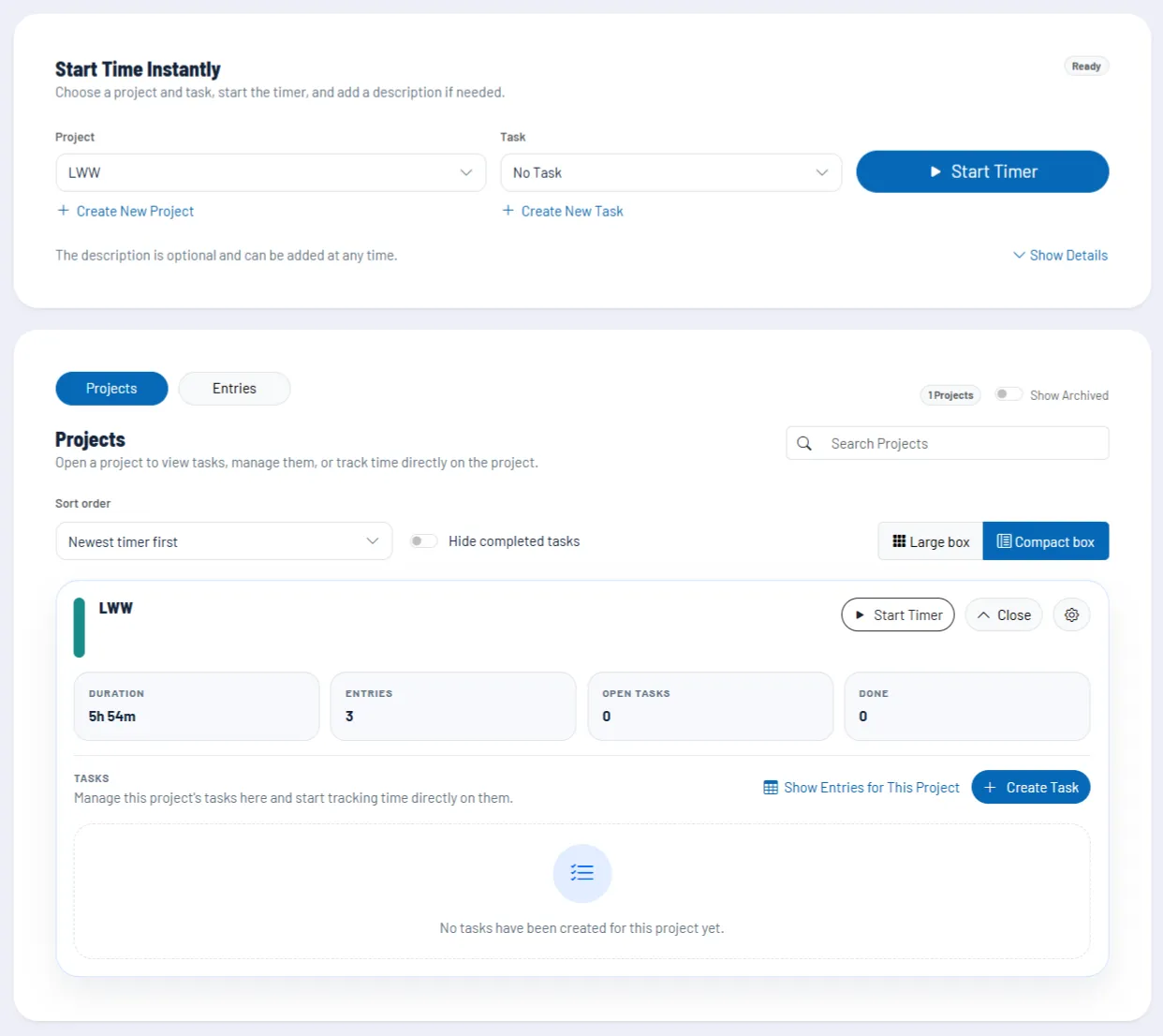
How the Time Tracker is structured
The structure is intentionally kept clear so that time tracking does not slow you down in everyday work.
| Level | Function | Practical benefit |
|---|---|---|
| Project | Framework for related work, clients, mandates, or internal topics. | Times are neatly grouped and easier to evaluate later. |
| Task | Subdivision within a project, for example concept, revisions, or support. | You can see more precisely what time within a project was used for. |
| Time entry | Completed time span with start, end, duration, and description. | These entries form the basis for reports, exports, and sharing. |
| Live timer | Ongoing tracking in real time. | Ideal for focused work without subsequent maintenance. |
Track time live or manually
Live timer for the current workday
The fastest way to get started is via the timer. You select a project and optionally a task, add a description if required, and start tracking immediately. While the timer is running, the description can be continuously adjusted. This keeps the documentation up to date even for longer work blocks.
This is particularly valuable in day-to-day business, because you do not have to reconstruct at the end of the day what you worked on. Instead, time tracking happens in parallel with the actual work.
Manual entries for additions and corrections
If time needs to be added later, use manual tracking. In this case, you enter start and end time, project, task, and description directly. This is suitable for retrospective maintenance, subsequent corrections, or transferring times from external processes.
Settings for your working style
The Time Tracker offers additional settings that allow you to adapt tracking to your way of working. These include, for example, automatically stopping long timers, handling multiple parallel timers, hiding completed tasks, displaying project cards, and a timer widget in the navigation.
Personal and team projects
Projects can be created as personal or team-related. Personal projects are suitable for your own tasks, internal preparatory work, or work that does not belong in a shared team context. Team projects, on the other hand, bundle shared time tracking in a common workspace.
This separation is very useful in everyday work because it clearly distinguishes private self-organization from shared project work. At the same time, reports and shares remain precisely controllable.
Evaluations, filters, and exports
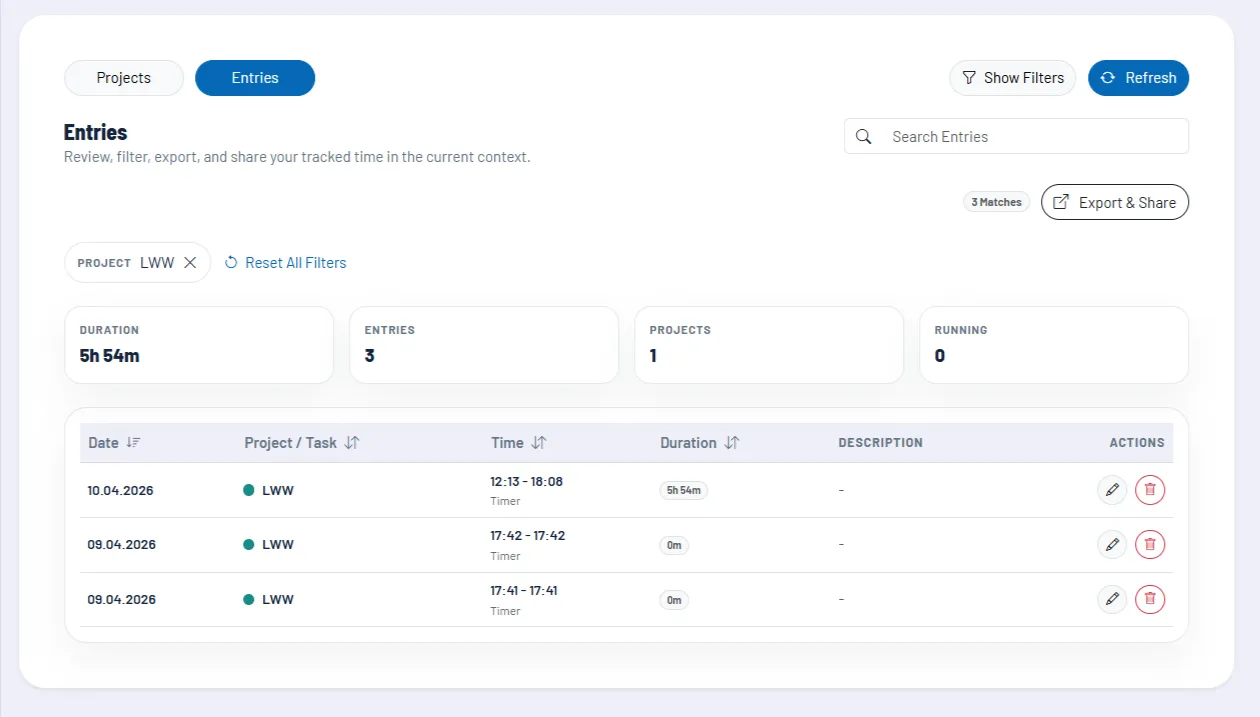
The real added value of time tracking becomes clear in the evaluation. The Time Tracker provides filters by period, projects, tasks, and people involved. This gives you exactly the segment you need at the moment, for example for a monthly report, a single project, or a view focused on certain team members.
- Period: for daily, weekly, monthly, or freely defined evaluations
- Project and task filters: for focused reports per topic or client
- Member filter: for team-related evaluations
- Archive filter: so that older, completed projects can also be included in reports if necessary
Exports are available for sharing or storing the results. It is particularly convenient that you can not only work internally but also output the selected evaluation segment as a file, for example as CSV or PDF.
Sharing and collaboration
In addition to classic exports, the Time Tracker supports read-only share links. This allows you to share a selected reporting segment directly without granting editing rights. The public link shows the recorded times, projects, tasks, and totals for the selected period but is explicitly read-only.
For collaboration in a team, the distribution of rights is particularly important:
- Team members can log time to shared team projects and also work there within the permitted project context.
- The workspace owner manages team projects, can change, archive, or restore them, and retains full oversight of shares in the shared area.
- Creators of a share link can revoke their own links; in a team context, the workspace owner can also do this.
Important in practice: Shared workspace releases remain limited to the shared area. Personal projects of individual team members do not unintentionally become part of a team share.
Archived projects and ongoing work
Projects can be archived when they are completed or should no longer be visible in day-to-day operations. Archived projects are retained for historical purposes but are write-protected. This is useful because completed work remains available for evaluation without the risk of new entries accidentally being added to old projects.
For a clean closure, the tool also checks whether there are still running timers for a project. Only when these have been stopped is a project archived. This prevents active work and completed project states from being mixed.
Recommended way of working
- Do not create projects that are too broad. A clear project model significantly improves later evaluations.
- Use tasks within a project if you want to know which activities actually consume time.
- Start the timer right at the beginning of a work block and add to the description while you work.
- Use manual entries only for additions or corrections, not as a replacement for live tracking.
- Consistently archive completed projects so that active projects remain in the foreground in daily use.
- Prefer sharing evaluations via read-only links when other people need insight but should not change anything.