The ticket system is your structured request channel to our agency. Instead of organizing matters via scattered emails, chat messages or individual files, you can bundle briefings, follow-up questions, documents, access data and ongoing communication in one fixed place.
In this article
- How the ticket system works in practice
- Creating tickets and providing a clear briefing
- Comments as an ongoing work dialogue
- Deliberately separating files and access data
- Important functions in everyday ticket use
- Notifications per ticket
- Reading aloud, translating and direct follow-up
- Tasks as the next work steps
- Recommended way of working
This makes tickets suitable not only for support inquiries, but also for concrete work orders, technical reviews, content briefings or ongoing coordination. Each request receives its own history, a traceable status and all documents exactly where they are needed in the workflow.
How the ticket system works in practice
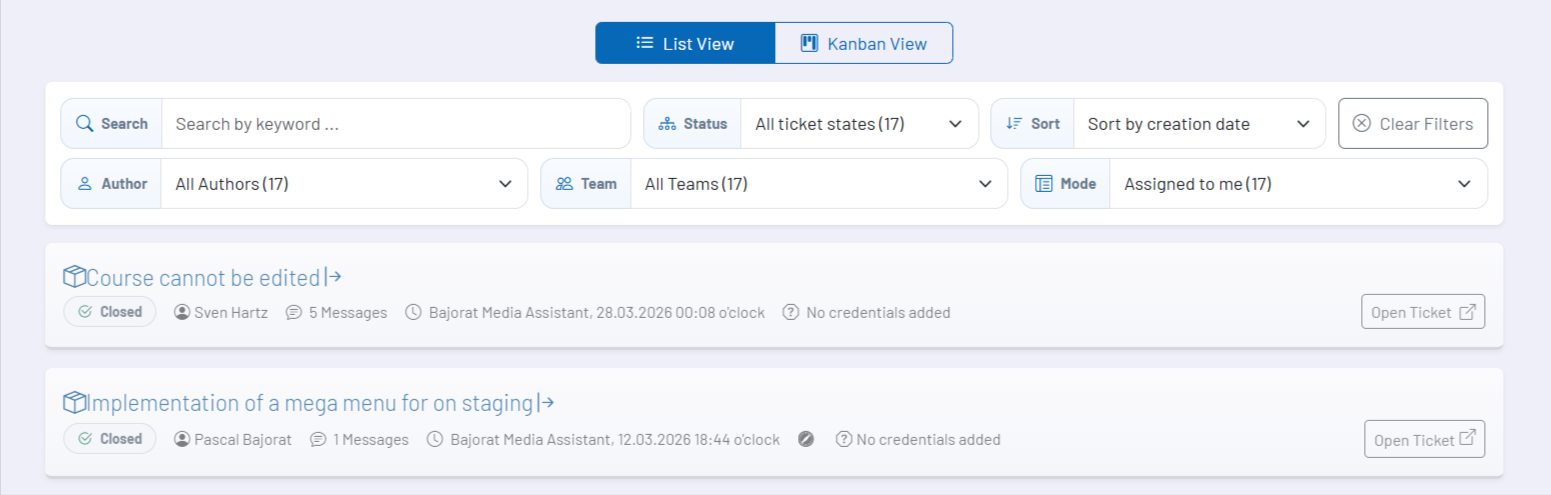
In the ticket dashboard you can see your ongoing and past processes in a structured overview. From there you create new tickets, switch between list and Kanban views, search by keywords, filter by status and sort the display by creation date or last activity. This way you keep an overview even with several parallel requests.
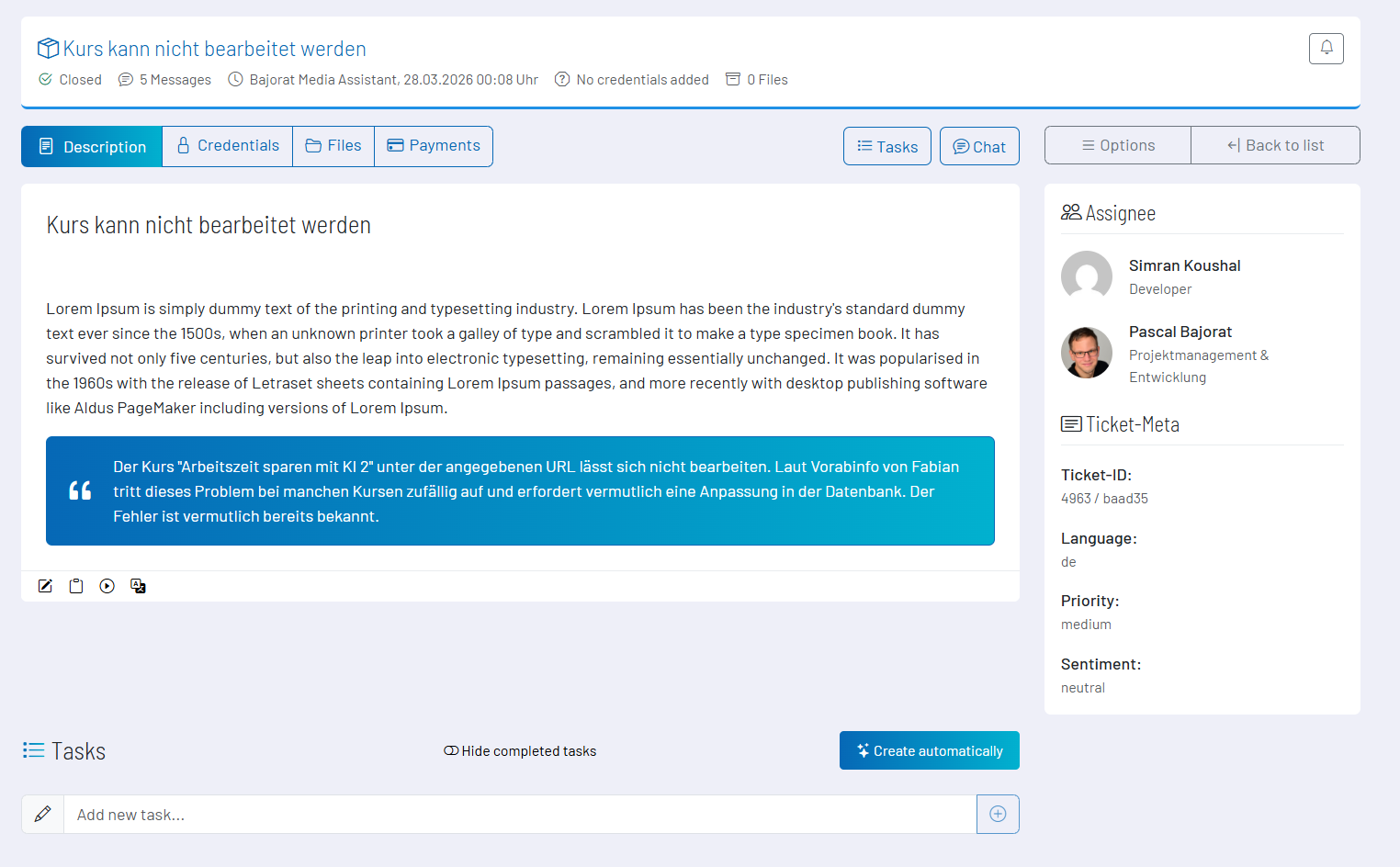
An opened ticket is your actual workspace. There you will find the description of the matter, the message history, the file section, the access data, the tasks and further context-related information. Everything related to this process remains neatly bundled in one place.
Creating tickets and providing a clear briefing
A ticket is suitable for support cases as well as implementation requests, follow-up questions or project-related inquiries to our agency. The clearer you describe the problem, goal, affected URL, malfunction or desired result, the faster a concrete next step can be derived from a request.
Comments as an ongoing work dialogue
Comments form the actual dialogue within a ticket. You can answer follow-up questions, provide additional information or respond to intermediate steps without losing the context. This keeps the history traceable even over a longer period of time.
Separate attachments can be uploaded to individual comments. This is particularly useful when a file belongs directly to a specific answer or follow-up question. In the ticket you will therefore deliberately see both general ticket files and separate comment attachments.
If a ticket has already been closed or canceled and you comment again, the process will be reopened. This is useful when there is still genuine need for follow-up on the same topic. If your new point no longer relates to the original matter, a new ticket is usually the cleaner solution.
Deliberately separating files and access data
The general file area is intended for ticket-wide documents such as screenshots, documents, exports or other project files. These files are related to the entire process and not just to a single message.
There is a separate, dedicated area for access data. This is deliberately separated from the normal comment history so that sensitive information does not get lost between general messages or is accidentally placed incorrectly. For security reasons, stored access data is not displayed automatically. If you want to view or update it, your own password is required.
Typically, WordPress logins, SFTP data or other technical access information, if needed, are stored there. The contents are stored securely and are not kept permanently after the ticket has been completed. According to the system logic, such access data is automatically removed 30 days after the ticket has been closed or canceled.
Important functions in everyday ticket use
Notifications per ticket
Notifications can be specifically enabled or disabled for individual tickets. This is helpful if you want to stay actively informed about a process or deliberately mute a completed thread without losing access to the ticket.
Reading aloud, translating and direct follow-up
Visible ticket contents and comments can be read aloud or translated directly in the thread. These convenience features are particularly helpful if you want to grasp longer content more quickly or bridge language barriers in communication.
Tasks as the next work steps
The tasks area helps turn a request into concrete to-dos. There you can see open and completed work items collected in one place. Depending on the situation, tasks can be added manually or derived from existing ticket content so that a clearly structured workflow emerges from the briefing.
Recommended way of working
- Open a separate ticket for each topic instead of mixing very different matters in one process.
- Describe the goal, problem, affected URL and desired result as concretely as possible directly in the ticket.
- Use the access data area only for sensitive logins and not the normal comment history.
- Upload general documents in the file area and comment-related files directly to the corresponding message.
- Use tasks to turn a longer history into visible concrete next steps.
- Only comment on closed tickets again if it really concerns the same topic and the process should be reopened.