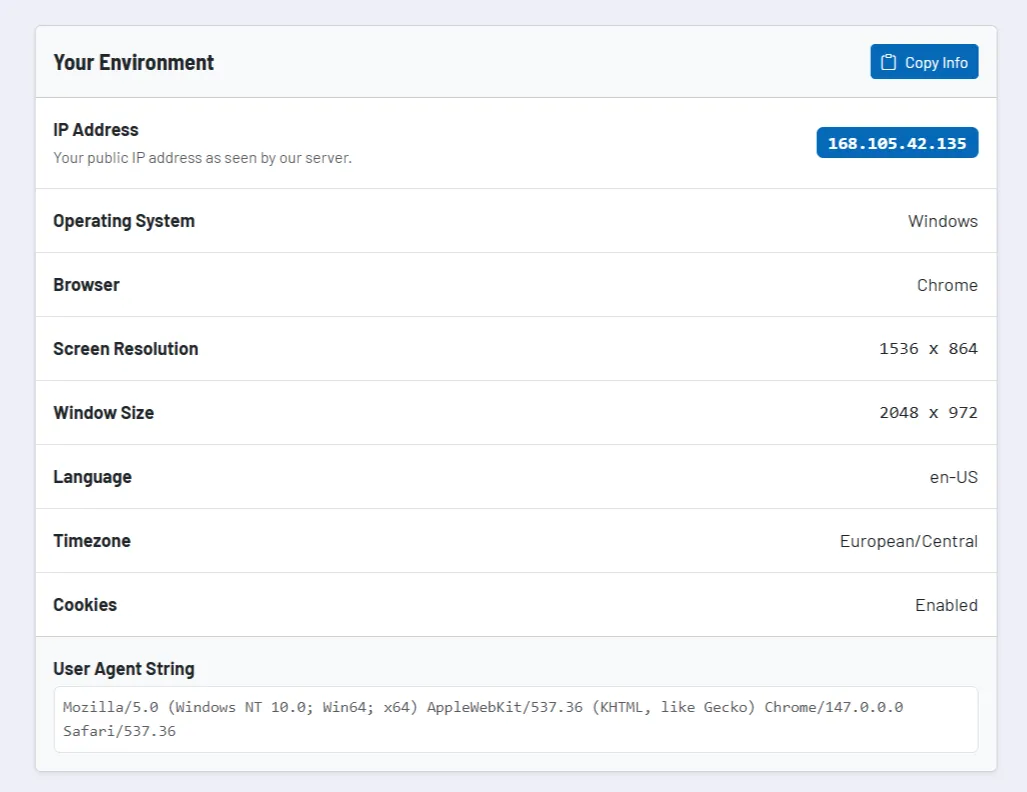
The System Lookup tool shows your current technical working environment in a compact overview. This includes, among other things, public IP address, operating system, browser, screen resolution, window size, language, time zone, cookie status, and the complete user agent.
The tool is particularly useful for support, troubleshooting, and documentation. Instead of having to gather information from various browser menus or operating system views, you can see all important environment data in one place and copy it directly as a continuous block.
How the tool works in practice
When you open the tool, the available device and browser information from your current session is compiled. In addition, your public IP address is displayed as it is visible from the server’s perspective. This gives you a combination of local device profile and network-side perspective.
The output is deliberately tailored to typical support and diagnostic situations. For example, when display errors, localization issues, cookie restrictions, or session problems are being investigated, the overview immediately provides the relevant key data, without you having to manually document multiple sources.
Using the copy function, you can transfer the entire compilation directly to the clipboard. This is particularly helpful for tickets, technical queries, or internal coordination, because the data can be passed on in a consistent format.
Core features and key views
- The overview combines browser and device data with the public IP address, so that locally available and server-visible information comes together in a single view.
- Screen and window data help analyze layout or responsiveness issues, especially when errors only occur in specific viewport constellations.
- Language, time zone, and cookie status are useful when application logic, tracking behavior, or localization respond differently.
- The user agent is output in full and is therefore also suitable for more in-depth support or development analysis.
Recommended workflow
Use the output as directly as possible in support tickets or technical feedback instead of describing the data freely afterwards. This helps avoid incomplete or inconsistent information and makes it easier for the responsible teams to narrow down problems more quickly.
For hard-to-reproduce errors, it is worth combining the information with a screenshot or a brief problem description. The tool provides the technical environment, making it much easier to understand the actual cause of the error.