Responsive Testing displays a website simultaneously in multiple device views. This makes layout issues, breakpoint problems, and unsuitable spacing visible much faster than by manually switching in the browser.
The tool is particularly helpful before launches, approvals, or design sign-offs, when the same URL needs to be evaluated side by side on desktop, laptop, tablet, and mobile.
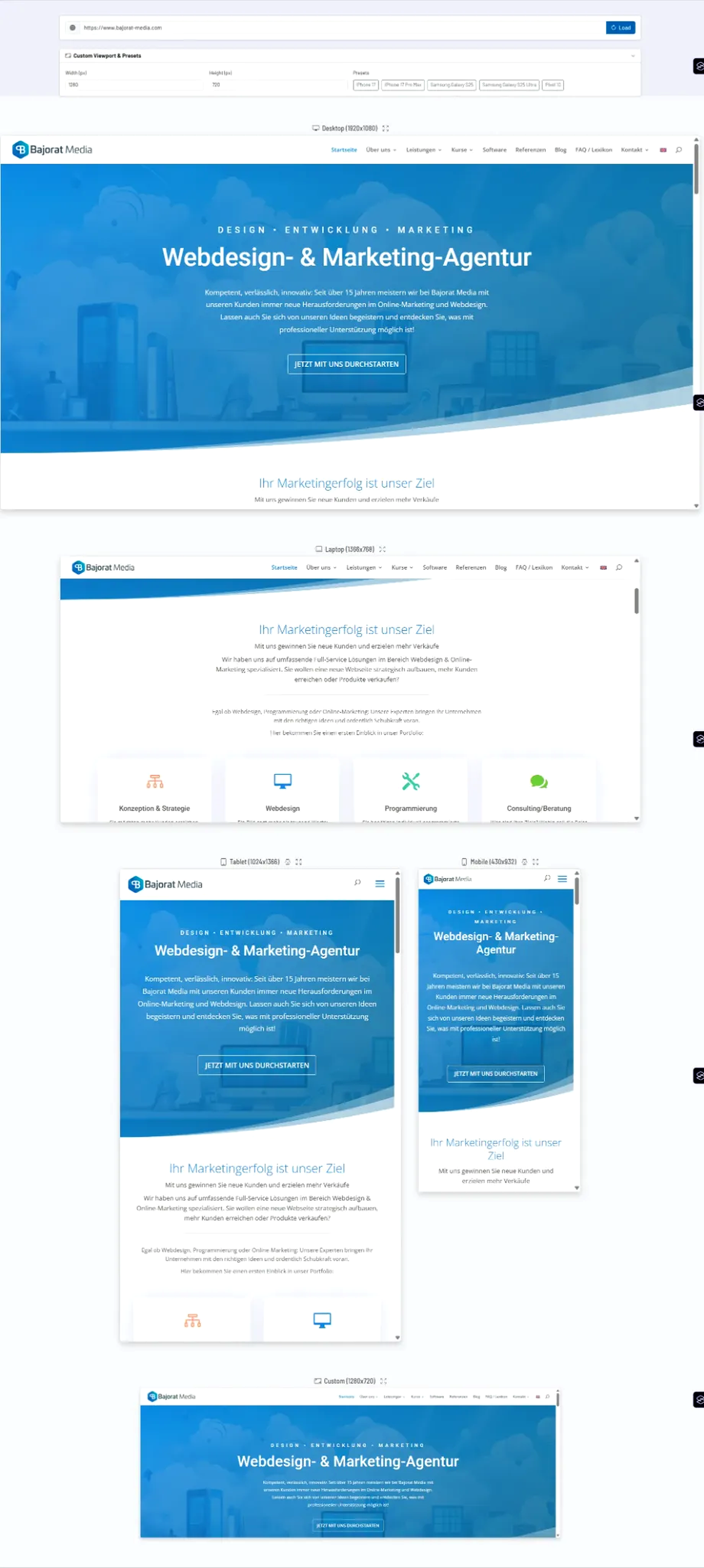
How the tool works in practice
You load a URL and then see it in parallel in several frame views. This lets you compare the responsive behavior directly without constantly changing device sizes or using dev tools.
In addition, the tool supports custom viewports and predefined sizes. Individual views can be enlarged, and for tablet or mobile situations you can switch between portrait and landscape orientation.
Core features and key views
- Parallel view of multiple devices: Desktop, laptop, tablet, and mobile are visible at the same time.
- Custom viewports: Specific widths and heights can be tested in a targeted way.
- Presets: Frequently used device sizes can be accessed more quickly.
- Zoomed views: Individual frames can be enlarged for closer inspection.
- Orientation change: Especially for tablet and mobile, checking different orientations is helpful.
This makes the tool ideal for QA, frontend sign-off, and quick visual checks together with clients or internal teams.
Recommended workflow
- Always check key entry pages in multiple device views at the same time, not one after another.
- Use custom viewports for known target devices or specific breakpoint-related questions.
- Use zoom as soon as irregularities appear, to narrow down not only the problem but also its cause more precisely.