Notes consolidates thoughts, decisions, intermediate statuses, and attachments in a central note-taking system. The tool is useful wherever information should not get lost in chats, emails, or scattered documents.
In this article
Notes is particularly strong when personal work notes and shared team documentation should coexist cleanly side by side. The tool separates personal and shared areas, offers search and tags, supports file attachments, and can share individual notes publicly.
How the tool works in practice
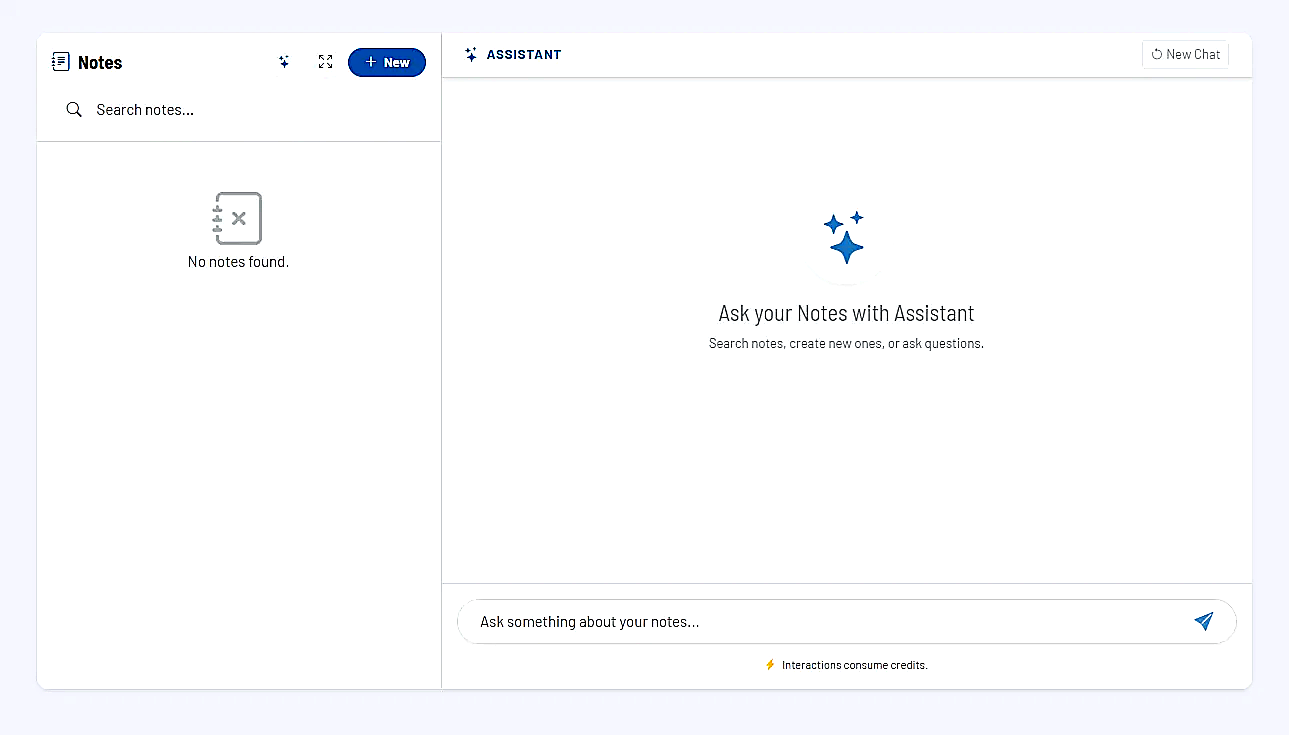
The left side serves as a work overview with search, tag filters, and note list. New notes can be created quickly, existing entries are found directly in the list and retrieved again by recency or search terms.
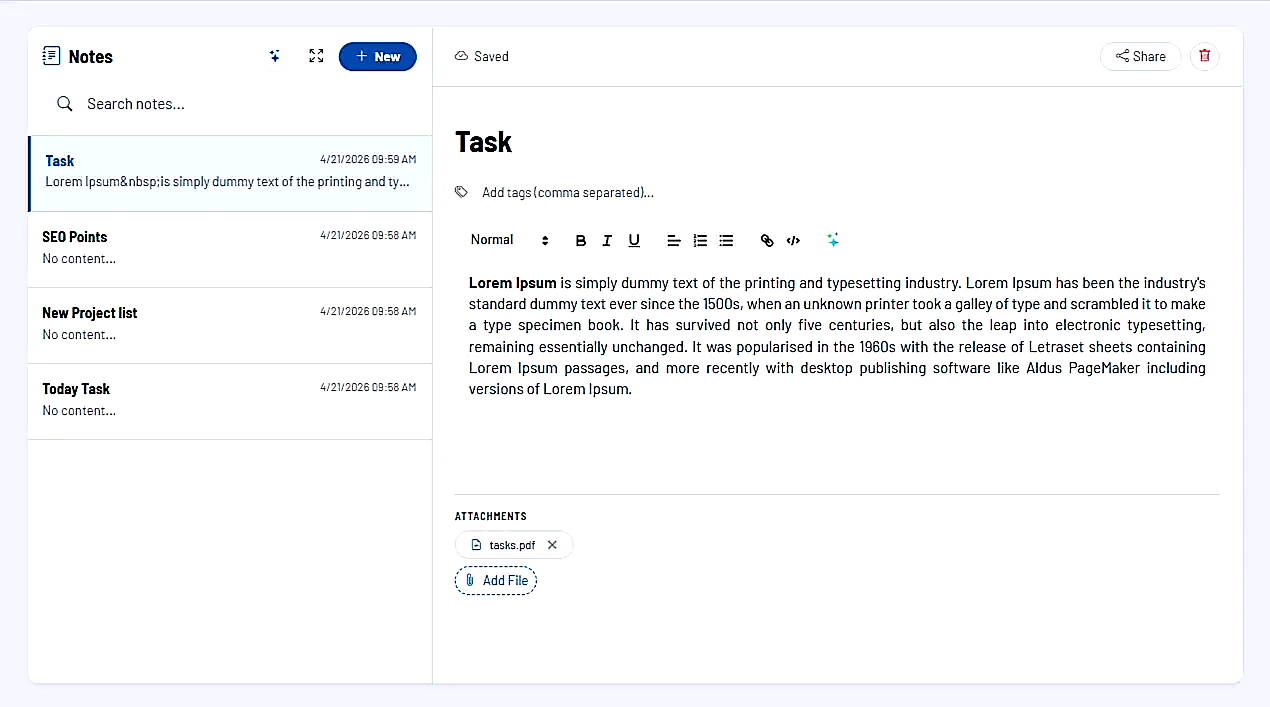
On the right, the active note opens in the editor. There you edit title, content, and tags in a unified writing view. Attachments can be stored directly with the note so that text and related files stay together.
Additionally, an assistant is integrated that can be used in the context of the notes. This makes the tool suitable not only for capturing but also for further processing and condensing content.
Core features and key views
- Personal and team view: If a team context is available, you can switch between personal and shared notes.
- Search and tag filters: Notes remain easy to find even as the volume grows.
- Editor with file attachments: Content and related files are maintained together in one place.
- Public sharing: Individual notes can be shared in read-only mode via a public link.
- Edit protection: If a note is currently being edited by someone else, this is shown as a lock.
- Assistant in the note context: Content can be further processed directly from within the note.
Team, sharing, and collaboration
In a team context, notes can deliberately be kept as personal or shared notes. Shared notes serve as a central knowledge base for decisions, minutes, or ongoing work statuses, while personal notes support your own work organization.
The locking logic is particularly important for collaboration. If a note is already being actively edited, other people will see that the entry is currently locked. This reduces overlaps and unintentional parallel changes.
Public sharing links are useful when content should be shared externally in read-only form without granting internal edit access.
Recommended workflow
- Use tags consistently so that notes are not only stored but can also be found again later.
- Deliberately separate personal work notes and true team documentation according to their purpose.
- Attach relevant files directly to the note instead of storing them separately and having to search for them later.
- Use public shares for read-only views when content should be shared externally or across departments.