The Google Ads Analyzer connects raw data from your Google Ads account with a structured evaluation, visual detail views, and an AI-supported assessment. The tool is aimed at anyone who not only wants to monitor campaigns on the surface, but wants to use data to identify where budget is being lost, which signals are shifting, and which optimizations really have priority.
In this article
The tool is particularly strong in the interaction of account connection, analysis wizard, dashboard, AI assessment, chat, and sharing options. This means you don’t get a static single report, but a workspace in which you can select data, evaluate it, share it with colleagues, and ask concrete follow-up questions directly from the dataset.
How the tool works in practice
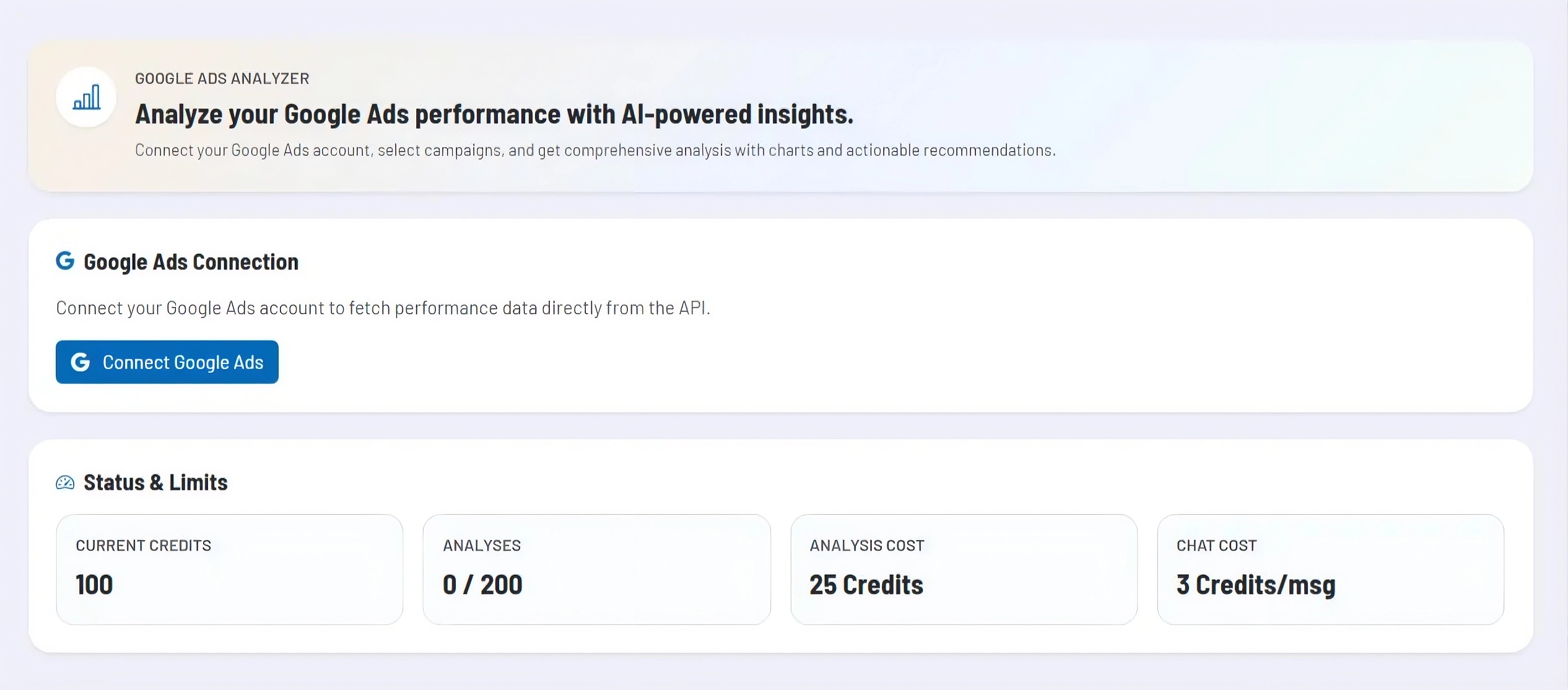
To begin, you connect your Google Ads account to the tool. You then use the wizard to select the desired account, the relevant campaigns, and the analysis period. This allows you to deliberately control which data segment the subsequent evaluation refers to instead of evaluating the entire account without focus.
After starting the analysis, the selected campaign data is loaded and saved as a new analysis entry. In the list view, you can immediately see which analyses already exist, which time period they cover, and whether an AI evaluation has already been created. From there, you can reopen any analysis and continue working in the different views.
In the detail area, you can switch between dashboard, AI assessment, AI chat, and raw data. The dashboard shows key metrics, priorities, and developments over time. The AI assessment condenses anomalies into a management view with concrete optimization suggestions. You can then use the chat to ask follow-up questions directly based on the loaded data without having to leave the analysis.
Core features and key views
- The multi-step wizard guides you cleanly through account selection, campaign filtering, date range, and naming of the analysis. This keeps every evaluation traceable and reproducible.
- In the dashboard you see not only overall values, but also prioritized actions, time series, and more in-depth detail evaluations for campaigns, segments, and other performance dimensions.
- The AI assessment translates data patterns into an understandable evaluation with optimization ideas. This makes the tool suitable not only for operational Ads managers, but also for decision-makers who need a clear overview.
- The AI chat builds on the same analysis and is suitable for follow-up questions such as root-cause analysis, prioritization, or working out action items for individual campaign areas.
- The raw data view allows for in-depth inspection with sorting, filtering, and a direct look at the underlying rows. This is particularly useful when anomalies from the dashboard or AI evaluation need to be examined in detail.
- For sharing, there is a PDF export and a public, read-only sharing view. When sharing, you define which sections should be visible so that external recipients see only the truly relevant analysis building blocks.
Team, sharing, and collaboration
Analyses are loaded in the team context so that authorized people within the same workspace can see and open existing evaluations. This creates a shared pool of analyses without multiple people having to create the same reports twice.
At the same time, responsibility remains clearly defined. The owner of an analysis retains control over sensitive administrative actions such as deletion and sharing. Share links are intentionally read-only and exclude the chat function so that shared views for clients, colleagues, or stakeholders remain clearly separated.
Recommended way of working
Do not create analyses that are too broad. Instead, work with reasonably delimited time periods and selected campaigns so that patterns remain clearer and optimization suggestions become more concrete. For operational routines, we recommend a recurring comparison of similarly structured analyses so that changes between time windows become easier to read.
Use the dashboard first for orientation, then the AI assessment for consolidation, and only afterwards the chat for targeted follow-up questions. This keeps work in the tool structured: first overview, then prioritization, then deep dive. For external alignment, you should finally create a reduced shared view or a PDF report instead of sending stakeholders directly to the complete raw data view.