The Chatbot Manager helps you create, design, and publish autonomous AI chatbots for your own website. Visitors can ask questions directly on the website, better understand offers, formulate initial concerns, or clarify typical support questions—without always needing immediate personal contact.
In this article
- What the Chatbot Manager is designed for
- How a chatbot is structured
- Creating your first chatbot
- Name, domain, and allowed hosts
- OpenAI API key and model
- Customizing appearance and texts
- Why this customization is important
- Behavior: privacy notice, welcome teaser, and conversation starter
- Privacy notice for new chats
- Welcome teaser
- Conversation starter
- Controlling knowledge and answers in a targeted way
- Base prompt
- Knowledge blocks
- FAQs
- AI guardrails, web search, and chat limits
- Integration on your website
- Webhooks for your own processes
- MCP and advanced automations
- Privacy and local chat history
- Team, workspace, and collaboration
- Recommended way of working
- Typical use cases
The tool is particularly valuable when you want your website to achieve more than pure information: The chatbot can guide visitors through services, answer recurring questions, pre-qualify inquiries, and considerably simplify the entry into sales, consulting, or support. You retain control over knowledge, appearance, allowed domains, privacy texts, and integrations.
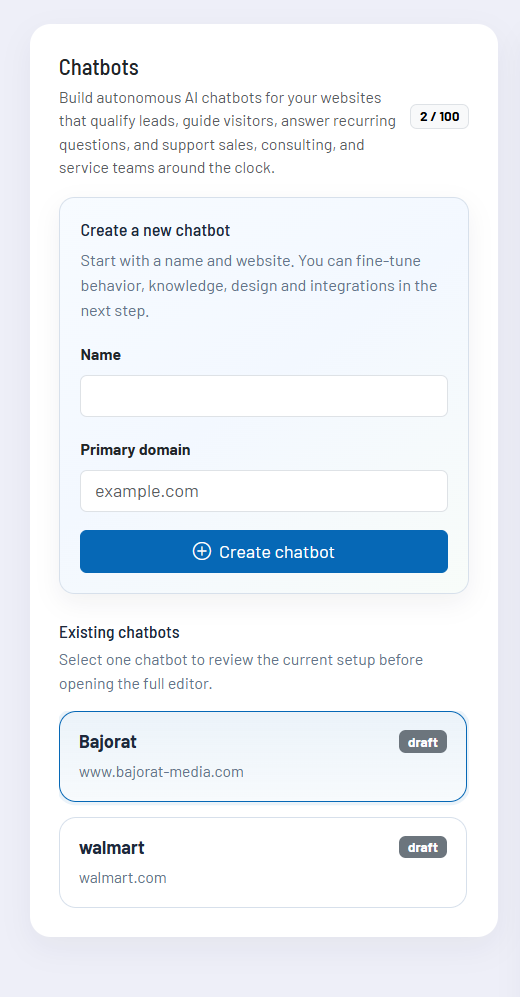
What the Chatbot Manager is designed for
Many website visitors have specific questions before they fill out a form, make a call, or request an offer. Frequently these questions concern services, processes, prerequisites, availability, consulting, support, or initial orientation. This is exactly where the Chatbot Manager comes in: It turns static website content into an interactive conversation entry point.
A well-configured chatbot can, for example:
- Guide visitors to suitable offers, services, or points of contact.
- answer frequent questions immediately and thus relieve support.
- Help prospects formulate their concerns more clearly.
- Pre-qualify leads before a personal conversation begins.
- Summarize complex information from website knowledge, FAQs, and additional notes in an understandable way.
- Forward structured events to your own systems, if needed.
The chatbot does not replace your strategy, your website content, or your service process. However, it makes this content more accessible and offers visitors a low-threshold, always-available entry point.
How a chatbot is structured
Every chatbot consists of several building blocks. This separation ensures that design, behavior, knowledge, security, and integration remain cleanly separated from each other.
| Area | Purpose | Typical settings |
|---|---|---|
| General | defines where the bot is allowed to run and which AI model is used | internal name, primary domain, allowed hosts, OpenAI API key, model |
| Appearance | determines how the chatbot appears on the website | position, colors, button icon, header, texts, placeholders, and status messages |
| Behavior | controls the entry into the chat | privacy notice, welcome teaser, conversation starter |
| Knowledge | provides the chatbot with facts, tone of voice, and recurring answers | base prompt, knowledge blocks, FAQs |
| AI Guardrails | limits how freely the bot is allowed to respond | website knowledge, web search, allowed sources, message limits |
| Webhooks and MCP | extends the bot with external processes | signed events, backend connection, MCP servers, and structured tools |
| Integration | provides the final embed code | CDN loader, configuration URL, HTML/JavaScript and WordPress snippet |
This structure also makes the tool easy to handle for teams: Subject-matter content, design texts, and technical integrations do not have to end up in a single, confusing prompt, but are maintained where they belong.
Creating your first chatbot
Name, domain, and allowed hosts
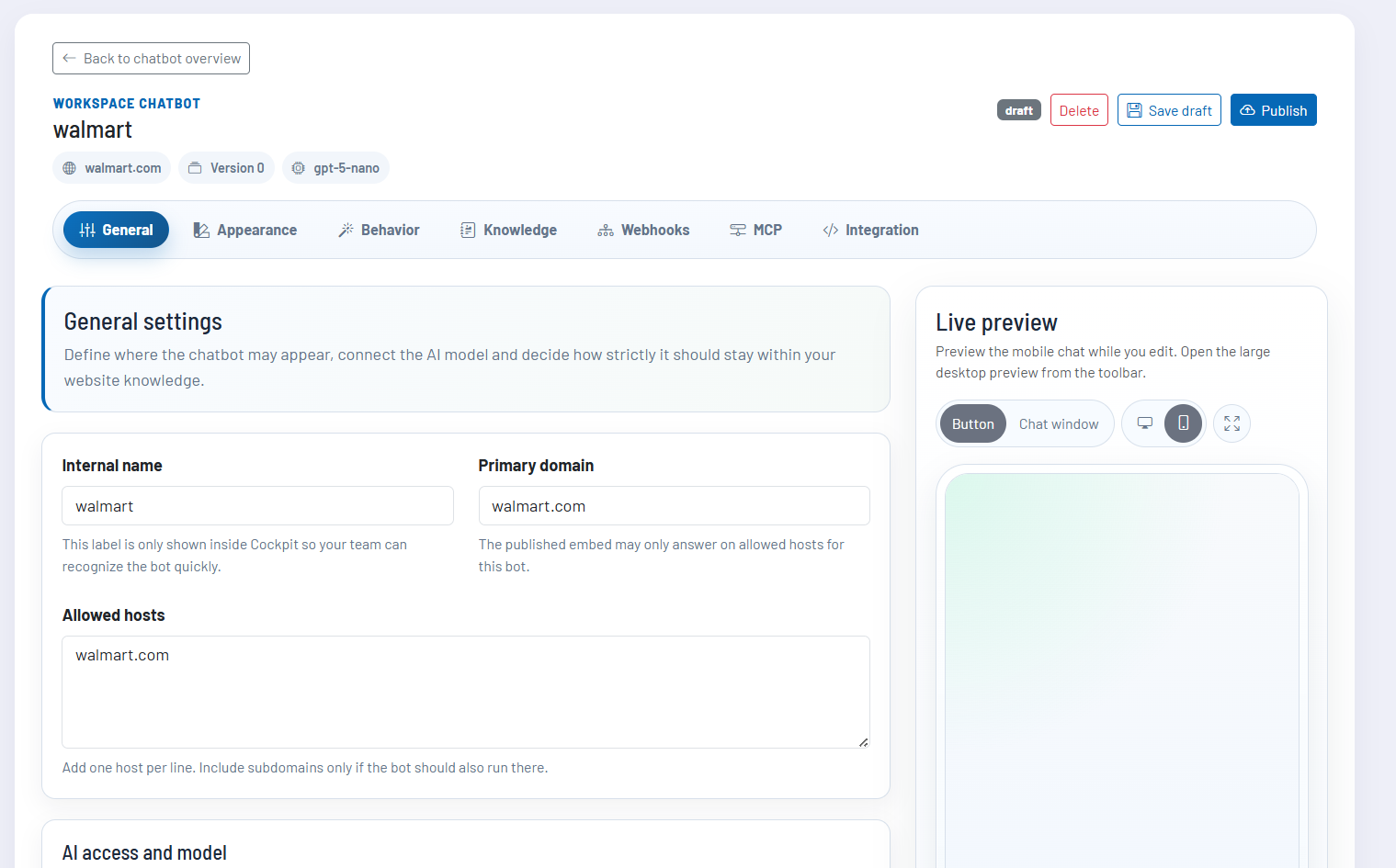
When creating a bot, you first enter an internal name and the primary domain. The internal name helps your team distinguish between bots, for example when multiple websites, landing pages, or projects are being managed.
Through the allowed hosts, you control on which domains the published embed is allowed to respond. This is important so that a bot cannot be used arbitrarily on third-party websites. Typically, you store the main domain and, if needed, additional subdomains on which the chatbot should also appear.
OpenAI API key and model
In order for the chatbot to generate answers, it requires an OpenAI API key. This is stored in the Chatbot Manager, saved in encrypted form, and used server-side. Website visitors do not see this key.
In addition, you select the preferred AI model. The selection is focused on supported OpenAI frontier models for website chatbots. If a preferred model is not available at a later time, the chatbot can fall back to a compatible alternative so that the configuration does not immediately become unusable.
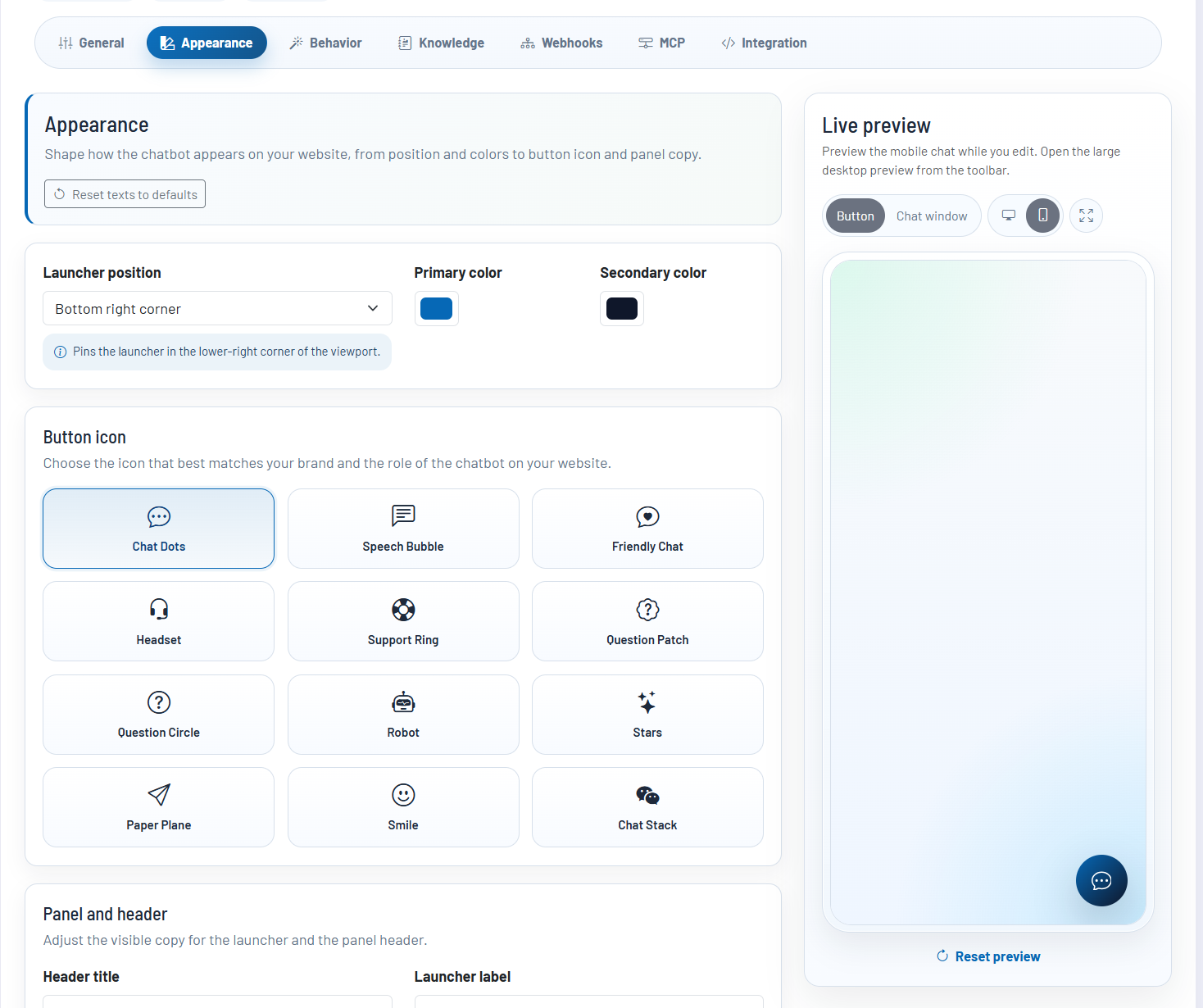
Customizing appearance and texts
The chatbot should not feel like a foreign element on your website. That is why you can customize its position, colors, button icon, and the main visible texts. These include, among others, header title, introductory text, input placeholder, send text, empty state, error messages, and other UI texts.
The live preview is particularly useful: As you change colors, texts, or icons, you can immediately see how the chatbot will look later. The mobile preview is permanently visible in the editor, while a larger preview for desktop views can be opened.
If you get stuck with the texts, you can reset the editable appearance texts back to their default values. Colors, position, icon, and behavior remain unaffected.
Why this customization is important
A chatbot is perceived by visitors as part of your website. Clear texts and matching design therefore play a major role in whether the bot is experienced as helpful, serious, and trustworthy. Short, concrete wording is usually better than general greetings or technical notices.
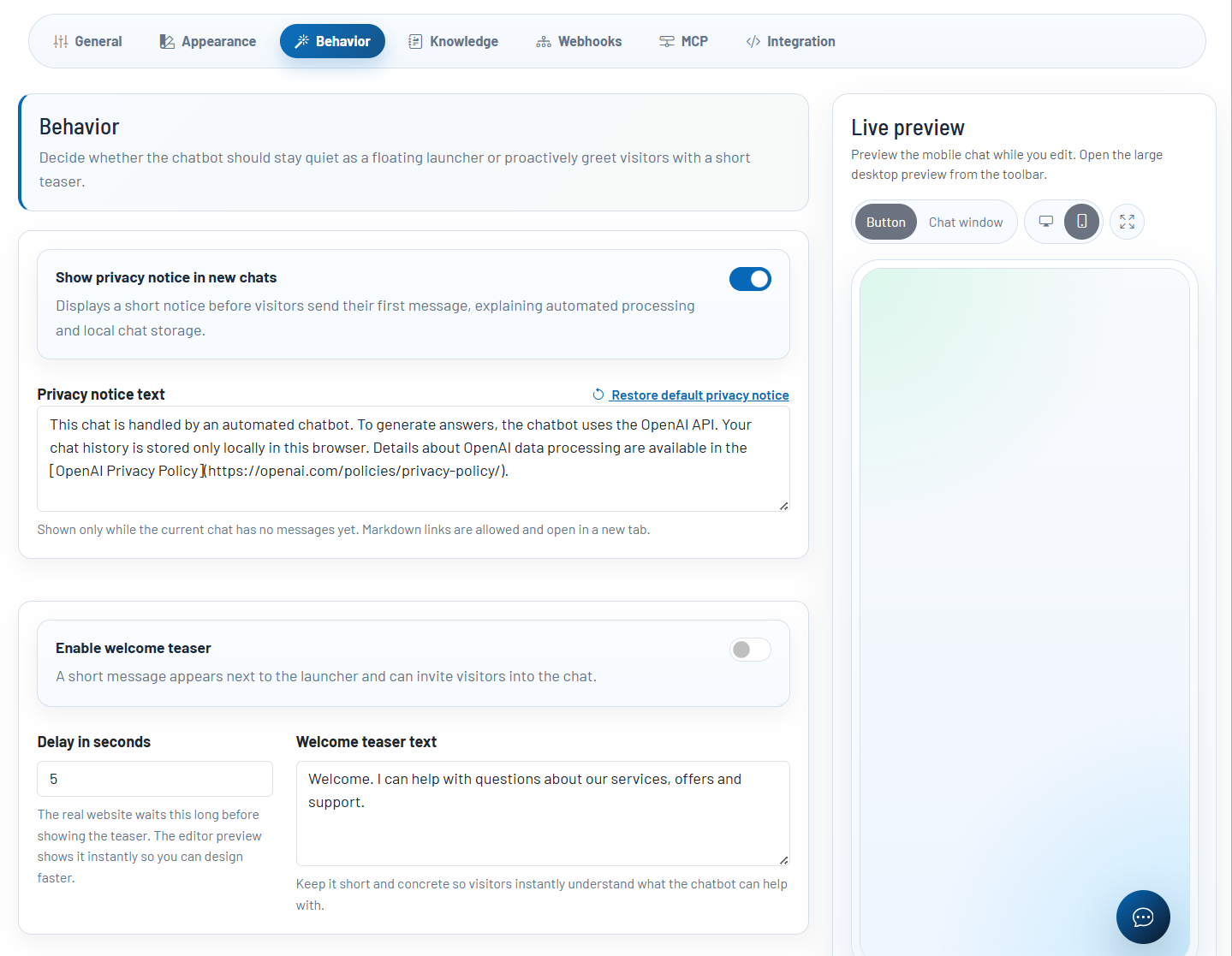
Behavior: privacy notice, welcome teaser, and conversation starter
Privacy notice for new chats
The Chatbot Manager supports an optional privacy notice that can be displayed before the first message in new chats. This notice explains that messages are processed by an automated chatbot, that OpenAI is used to generate responses, and that the chat history is stored locally in the browser.
The text is customizable and can contain Markdown links. This allows you, for example, to link cleanly to further privacy information without cluttering the chat interface with long raw URLs.
Welcome teaser
The welcome teaser is a short message next to the chat button. It can actively invite visitors into the chat, for example with a note about consulting, support, or common questions. The teaser should be short, concrete, and benefit-oriented.
Conversation starter
Conversation starters are suggested entry points for new chats. They are suitable for typical questions that visitors frequently ask, for example about services, processes, offers, availability, or support. Each starter consists of a short visible text and optionally a more detailed prompt that is inserted into the input field.
This helps lower the entry barrier: Visitors do not have to start with an empty input field; instead, they receive useful conversation suggestions directly in the chat window.
Controlling knowledge and answers in a targeted way
The quality of a chatbot strongly depends on what knowledge you provide and how clearly you define its role. In the Knowledge area, you therefore manage not only individual facts, but also tone of voice, conversation style, and frequent answers.
Base prompt
The base prompt describes the chatbot’s role. Here you can define how the bot should speak, what kind of help it should provide, which topics it should avoid, and when it should refer to a human contact. The base prompt complements the guardrails, but cannot override them.
Knowledge blocks
Knowledge blocks are suitable for longer reference content. This can include service descriptions, consulting processes, opening hours, project prerequisites, support rules, delivery information, or other structured notes. The bot can use this content as a basis for its answers.
FAQs
FAQs are intended for short, recurring question-and-answer pairs. They are particularly helpful where answers need to be very consistent, such as standard questions about contact, processes, responsibilities, or next steps.
In practice, a combination is recommended: The base prompt defines role and style, knowledge blocks provide context, and FAQs secure the most important standard answers.
AI guardrails, web search, and chat limits
AI guardrails define how strongly the chatbot is bound to your configured website knowledge. When strict knowledge binding is active, the bot may only respond based on the stored content and must clearly state when information is missing.
Optionally, OpenAI Web Search can be activated as an additional source. You can specify whether the bot may only use certain domains or whether no restriction should apply. A restricted domain list is particularly useful when the bot is supposed to consider current information but still only work with reliable, approved sources.
Additionally, you can configure message limits per bot. These include the maximum character length per message and the maximum number of messages per local chat. These settings help keep conversations manageable and structure user guidance clearly.
| Setting | Benefit |
|---|---|
| Strict website-knowledge answers | prevents the bot from speculating about information that is not stored |
| OpenAI Web Search | allows current external information when this is explicitly enabled |
| Allowed domains | limits web search sources to defined websites |
| Message limits | control length and scope of individual chat sessions |
Integration on your website
After configuration, you publish the chatbot and receive the necessary embed information in the Integration section. For classic websites, you use the CDN loader. For WordPress websites, a PHP snippet is additionally available, allowing the loader to be integrated at theme or plugin level.
The published configuration is delivered via a public config URL. The chatbot itself runs via a small loader script that loads the runtime and configuration and then mounts the widget on the website.
Importantly, changes in the draft do not automatically go live. Only when you publish the chatbot is the new configuration made available for the website embed. This allows you to prepare and review adjustments before visitors see them.
Webhooks for your own processes
With webhooks, the chatbot can send selected events to your own backend. This is useful when chat events should be integrated into existing systems, such as internal notifications, CRM processes, support routing, or your own evaluations.
You choose which events should be sent. These include, for example, new conversations, visitor messages, assistant responses, rate limits, and processing errors. Payloads are signed so that your endpoint can verify whether the request actually comes from Cockpit.
Activated webhooks are checked when saving and publishing. The endpoint must be reachable and respond correctly. If an active webhook repeatedly cannot be delivered during live operation, it is automatically deactivated so that faulty endpoints do not continue running unnoticed.
MCP and advanced automations
For advanced use cases, a chatbot can be connected to MCP servers. This allows the bot not only to answer based on static knowledge but also to use structured external tools when this has been intentionally set up and approved.
This feature is intended for scenarios in which the chatbot is meant to work with external systems in a controlled way. Examples include structured queries, internal actions, specialized data sources, or backend workflows. Up to five MCP servers can be connected per chatbot.
Since MCP entails deeper technical integration, this feature should be used in a targeted manner. A narrow scope is recommended: only trustworthy servers, clear tool descriptions, and careful scrutiny of which actions the bot is allowed to perform.
Privacy and local chat history
The Chatbot Manager includes several features to guide visitors transparently through the chat. The optional privacy notice appears before the first message and can point out processing by an automated chatbot as well as OpenAI as a technical service provider.
The local chat history is stored in the visitor’s browser. This allows a visitor to see the current history again as long as the local data is not deleted. At the same time, there is a subtle reset function in the widget that allows visitors to delete local chat data for this bot. This is particularly relevant on shared devices.
The fixed branding in the footer reads “Powered by Bajorat Media | Cockpit” and links to the Cockpit information page. This notice is set system-side and cannot be customized by bot operators.
Team, workspace, and collaboration
Chatbots are managed per workspace. In a team context, this means: Authorized team members work within the same workspace with the same chatbot configurations. This allows multiple people to collaborate on knowledge, design, integration, and publishing without having to maintain separate bot inventories.
The internal bot name is particularly helpful here. When multiple websites, brands, languages, or landing pages are managed, the team can clearly distinguish bots and open them specifically. The public website does not see this internal name.
As with other Cockpit tools, visibility and editing depend on the respective team and tool access. People without access to the Chatbot Manager cannot manage the configurations.
Recommended way of working
- Start with a clear goal: Should the bot provide consulting, qualify leads, answer support questions, or guide visitors to suitable content?
- Keep the base prompt short but concrete. Role, tone of voice, escalation rules, and no-gos should be clearly stated.
- Maintain knowledge blocks by topic instead of writing everything into a single long text.
- Use FAQs for particularly frequent or business-critical standard questions.
- Formulate conversation starters from the visitor’s perspective, not from an internal company perspective.
- Review design and texts in the live preview before publishing.
- Restrict web search to allowed domains when the bot should only use selected sources.
- Test webhooks and MCP servers thoroughly before using them in production workflows.
- Publish changes only once knowledge, texts, domain approvals, and the privacy text have been reviewed.
Typical use cases
- Sales and lead qualification: Visitors can describe their concerns, find suitable services, and clarify initial questions before getting in touch.
- Consulting and orientation: The bot guides users through complex offers, processes, or prerequisites.
- Support relief: Recurring questions are answered directly on the website before a ticket or email is created.
- Landing pages: Campaign pages can receive an interactive entry point without having to build a full support or sales process.
- Product or service knowledge: Extensive information is not only read but explored in a dialog-based way.
The greatest value arises when the chatbot is not seen as an isolated experiment, but as part of your website communication: with a clear purpose, well-maintained knowledge, an appropriate tone, and a meaningful transition to personal contact when the bot is no longer sufficient.