The Assistant is the central workspace for questions, research, drafts, and follow-up actions in Cockpit. Instead of switching between individual areas, you work here with a continuous chat context, personal templates, stored memory, and direct handovers from other features.
In this article
This makes the Assistant suitable not only for spontaneous questions but especially for recurring workflows: drafting content, classifying insights, deriving next steps, or continuing to work directly with prepared prompts from other Cockpit areas. The more precisely you feed the Assistant, the more it becomes a productive work tool in your daily routine.
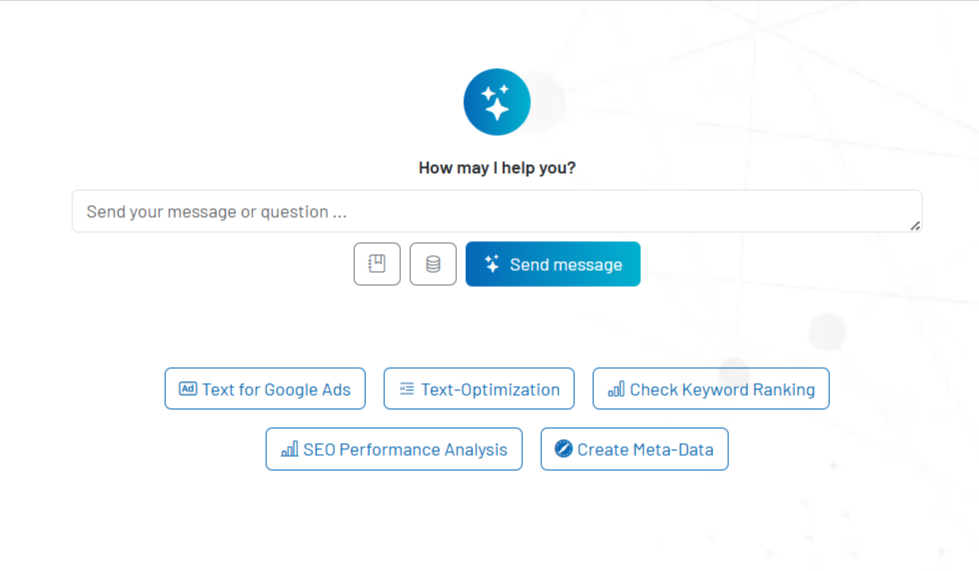
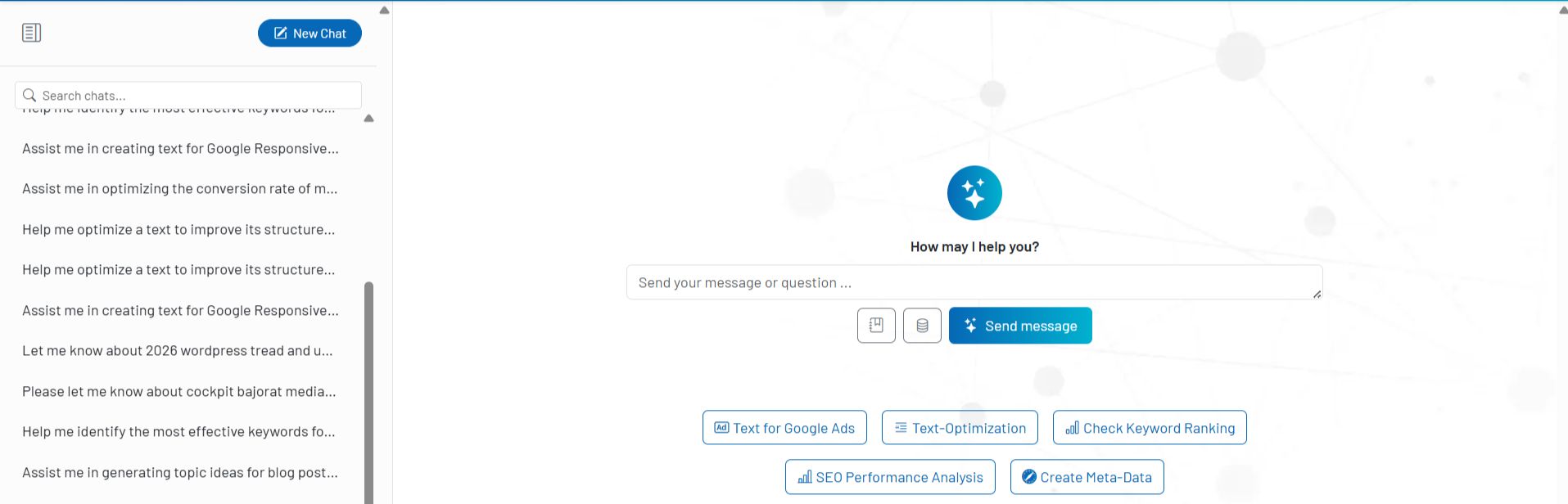
How the Assistant works in practice
You can start a new chat at any time or reopen an existing conversation. The Assistant stores your previous conversations in a searchable history so that earlier answers, already clarified questions, or ongoing topics are not lost. This is a major advantage for longer tasks, because you don’t have to start from scratch every time.
The input field for your prompt is at the center. You write your request, send it directly, and then continue working reply by reply. The Assistant stays in the same conversation until you intentionally start a new chat. This way, you don’t end up with a loose collection of individual messages, but with a traceable work process.
Organizing and finding chats
In the sidebar, you can see your previous chats and search them when needed. This is particularly helpful if you are working on topics in parallel or want to revisit earlier answers. Instead of requesting information twice, you can directly continue existing conversations in a targeted way.
Prompt templates for recurring tasks
Templates help you permanently save frequently used requests. You can name, search, edit, and reuse templates at any time. When inserting them, you have two practical options: you can either replace the current input text or append a template to the existing prompt.
The fastest way to use templates is via the slash start. When you begin with / in the input field, a quick selection of matching templates appears directly at the prompt. This is ideal for standardized briefings, recurring editorial tasks, or frequent analyses.
Using the Assistant memory effectively
The memory stores persistent information about your preferred way of working, your context, or recurring specifications. It is not intended for one-off, short-lived tasks, but for things the Assistant should take into account across many conversations. You can open, adjust, or completely clear this memory at any time.
The memory is most powerful when it is kept deliberately concise. Instead of storing long briefings or entire texts there, you should only store stable preferences, such as desired tone of voice, typical target groups, or recurring format specifications. When the Assistant updates the stored memory in the background, a corresponding notice appears on the relevant reply.
Voice input and text-to-speech
You can not only type prompts but also dictate them via microphone. After processing, the spoken text is transferred directly into the input field and can be appended to an existing request. In addition, Assistant replies can be read out loud directly in the chat, which is particularly convenient for longer texts or when you are on the go.
Handovers from other Cockpit areas
The Assistant does not work in isolation. Other features in Cockpit can pass prepared prompts to the Assistant so that you can continue working directly on a specific question. This turns the Assistant into the central follow-up tool when a discovery, an analysis, or an idea should immediately lead to a next action.
Important usability aids and shortcuts
The interface is designed for fast work. In addition to the visible navigation, there are a few keyboard shortcuts that are especially practical in everyday use.
Ctrl/Cmd + N: Starts a new chat.Ctrl/Cmd + S: Shows or hides the sidebar.Enter: Sends the current prompt immediately.Shift + Enter: Inserts a line break in the prompt.
Additionally, the input field supports dynamic height so that longer prompts can be edited clearly without disrupting your writing flow.
Recommended way of working
- Consciously use a new chat for new topics so that different tasks do not get mixed up.
- Save recurring briefings, roles, or format requirements as templates instead of rewriting them each time.
- Store only long-term preferences in the memory, not short-lived project clutter.
- Start the quick template selection with
/if you frequently work with standardized prompts. - Transfer prepared prompts from other Cockpit areas directly into the Assistant instead of manually rephrasing insights.
- Formulate prompts as concrete and focused rather than too broad so that the answers become more actionable.