The Accessibility Tool provides an accessibility helper that can be integrated directly into websites. The aim is to improve readability, visual accessibility, and user comfort for visitors more quickly, without first having to develop a custom widget.
The tool focuses not on analysis, but on integration and configuration. You define key settings such as position, language, and color and then receive ready-to-use integration code for classic websites or WordPress projects.
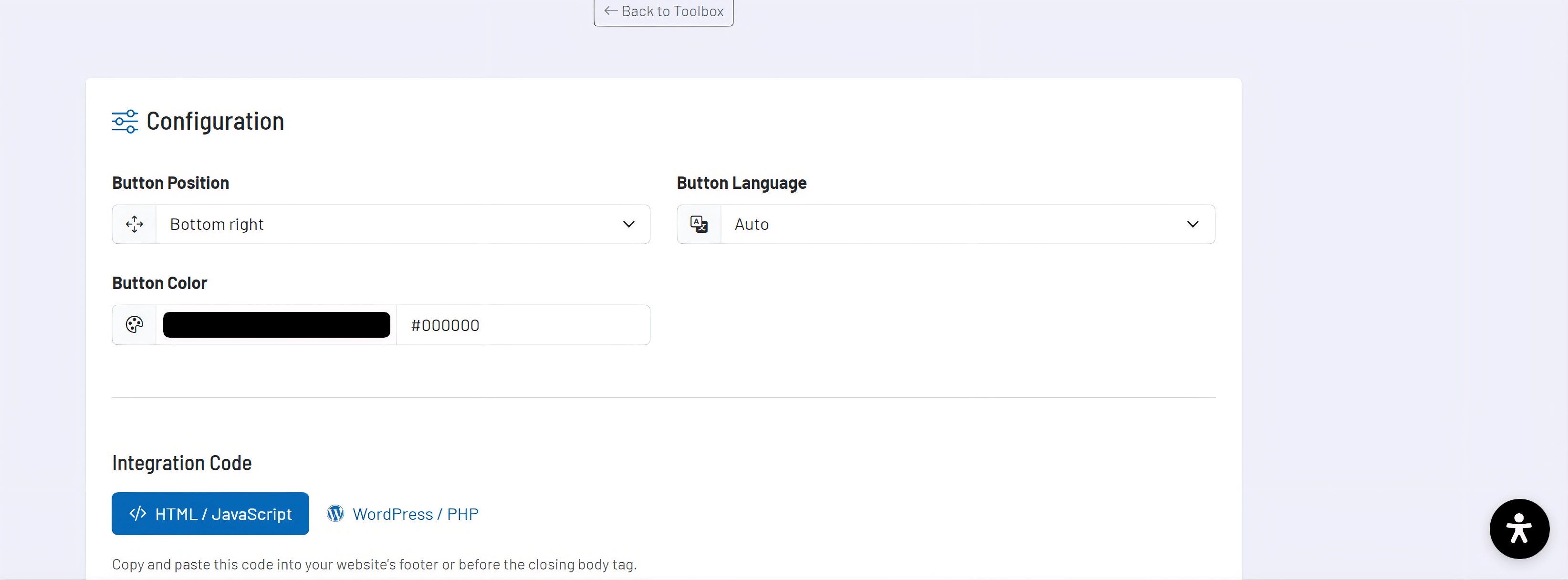
[Placeholder: Screenshot: Configuration view with color and position selection]
How the tool works in practice
In the first step, you configure the widget using a few visible core options. These include the position of the button on the website, the language of the widget, and the primary color of the button.
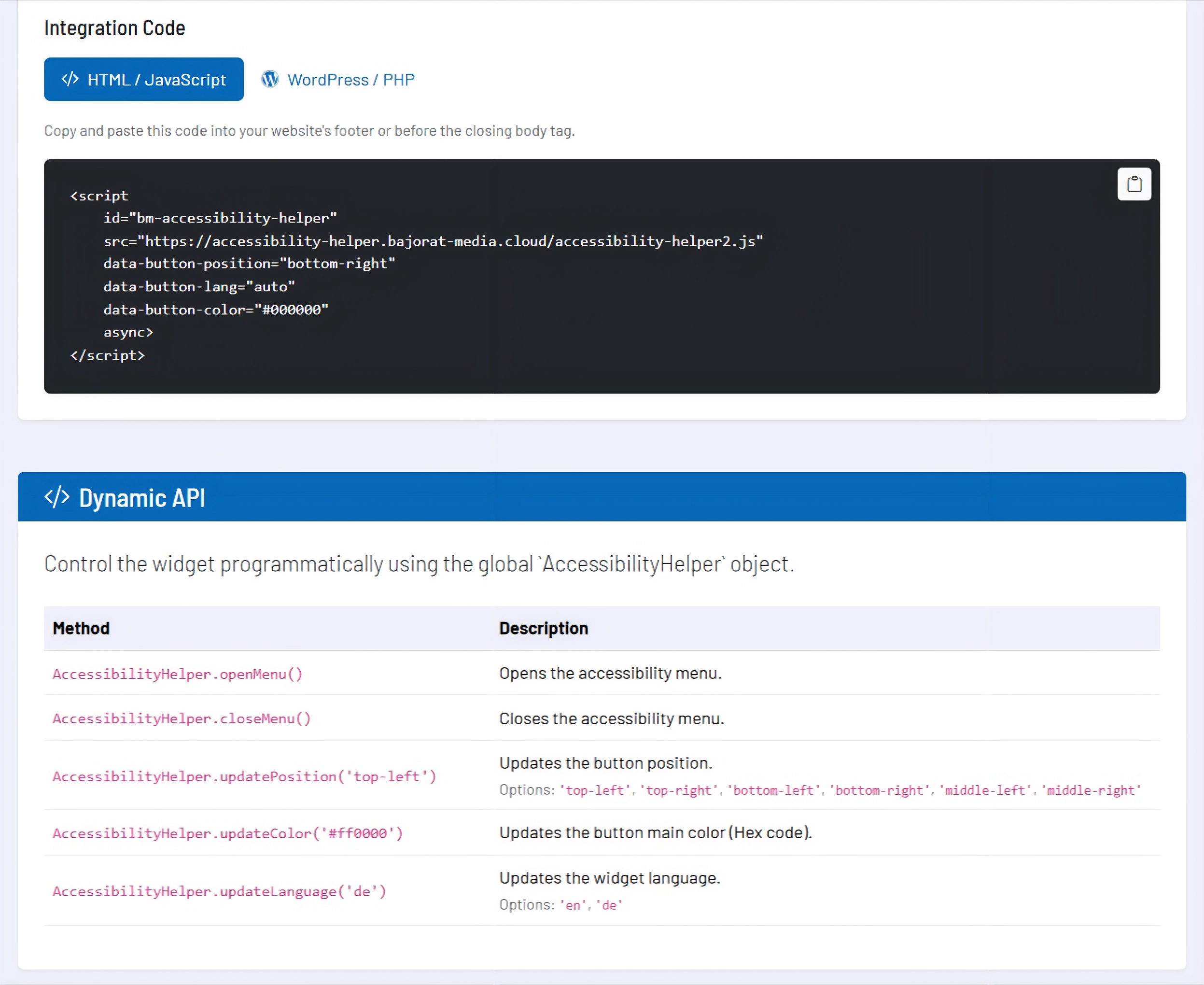
The tool then directly generates the required integration code. Two integration methods are supported: an HTML or JavaScript integration for general websites, as well as a WordPress or PHP variant for existing WordPress environments.
In addition, the tool documents a small programming interface that allows the widget to be controlled at runtime, for example to open the menu or to update the position, color, or language.
Core features and key views
- Widget configuration: Button position, language, and color are defined directly in the tool.
- Integration code for different environments: Both general HTML/JavaScript variants and WordPress/PHP snippets are provided.
- Copyable code blocks: The generated snippets can be used without additional preparation.
- Dynamic API notes: The tool documents methods for opening, closing, and updating the widget.
This is particularly helpful for teams where technical implementation and content configuration are handled by different people. The integration can be prepared and then cleanly handed over to development or website maintenance.
Recommended workflow
- Choose the button position so that it remains visible without covering important website elements.
- Adjust the color to match your branding without reducing the button’s findability.
- Use the appropriate integration type for your website instead of manually adapting generic code.
- Use the documented API methods when the widget is to be integrated into a more customized website workflow.