The Optimizer is your ongoing monitoring and improvement tool for websites. Instead of checking a site only once, you create a permanent observation space in which technical issues, SEO weaknesses, content shortcomings and other irregularities become visible at an early stage. This is where its real value lies: problems are not only noticed once rankings, user experience or conversion are already suffering.
In this article
- How the Optimizer works in practice
- Setup and crawl settings
- Important technical prerequisite for successful crawling
- What you see after starting a project
- Example finding categories of the crawler
- Why continuous website monitoring is so important
- Assistant connection and further workflows
- Recommended way of working
The Optimizer is particularly powerful when you want to continuously keep an eye on multiple websites, client projects or important corporate sites. It not only condenses raw data into a simple error list, but into prioritizable work tasks. This turns website monitoring into a clear operational process for quality, visibility and digital stability.
How the Optimizer works in practice
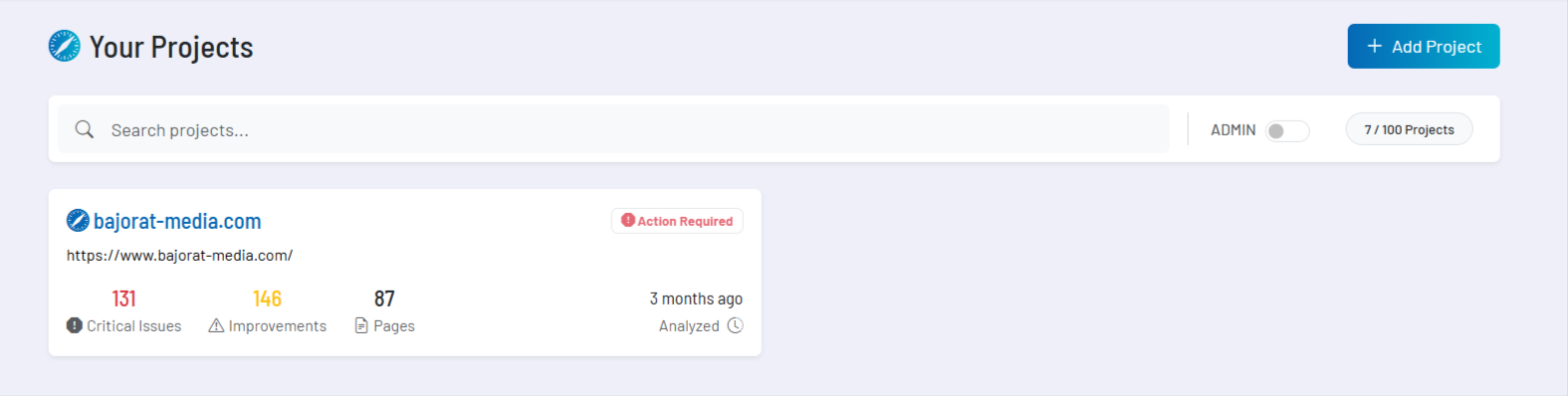
The Optimizer works on a project basis. You create a separate project for each website or relevant area and enter the start URL including https://. The project is then crawled, analyzed and subsequently rechecked so that changes do not go unnoticed.
If you set up a URL with a subdirectory, the crawling focuses on exactly this path. This is useful if you deliberately only want to monitor a specific part of a website, such as a shop section, a blog directory or a dedicated landing page path.
Setup and crawl settings
When creating a project, you control key parameters of the crawl. These include the maximum number of pages to be crawled, the maximum depth within the site structure, how to handle robots.txt as well as noindex and nofollow signals, and how often a project should be rechecked.
These settings are important because they define the character of the project. A small, focused area can be monitored differently from a larger site with many subpages. The Optimizer is therefore not just intended for a blanket full scan, but for consciously controlled monitoring of what is truly business-critical for you.
Important technical prerequisite for successful crawling
The crawler accesses your website from the IP address 195.201.161.38. If your website is protected by firewalls, hosting security rules, IP blocklists or other protection systems, you should explicitly allow this IP. Otherwise, crawls may remain incomplete or fail to start successfully.
Especially for business-critical or more tightly secured systems, this approval is often the decisive difference between reliable monitoring and a patchy data picture. Anyone who seriously wants to use the Optimizer for quality assurance should clarify this technical prerequisite properly from the beginning.
What you see after starting a project
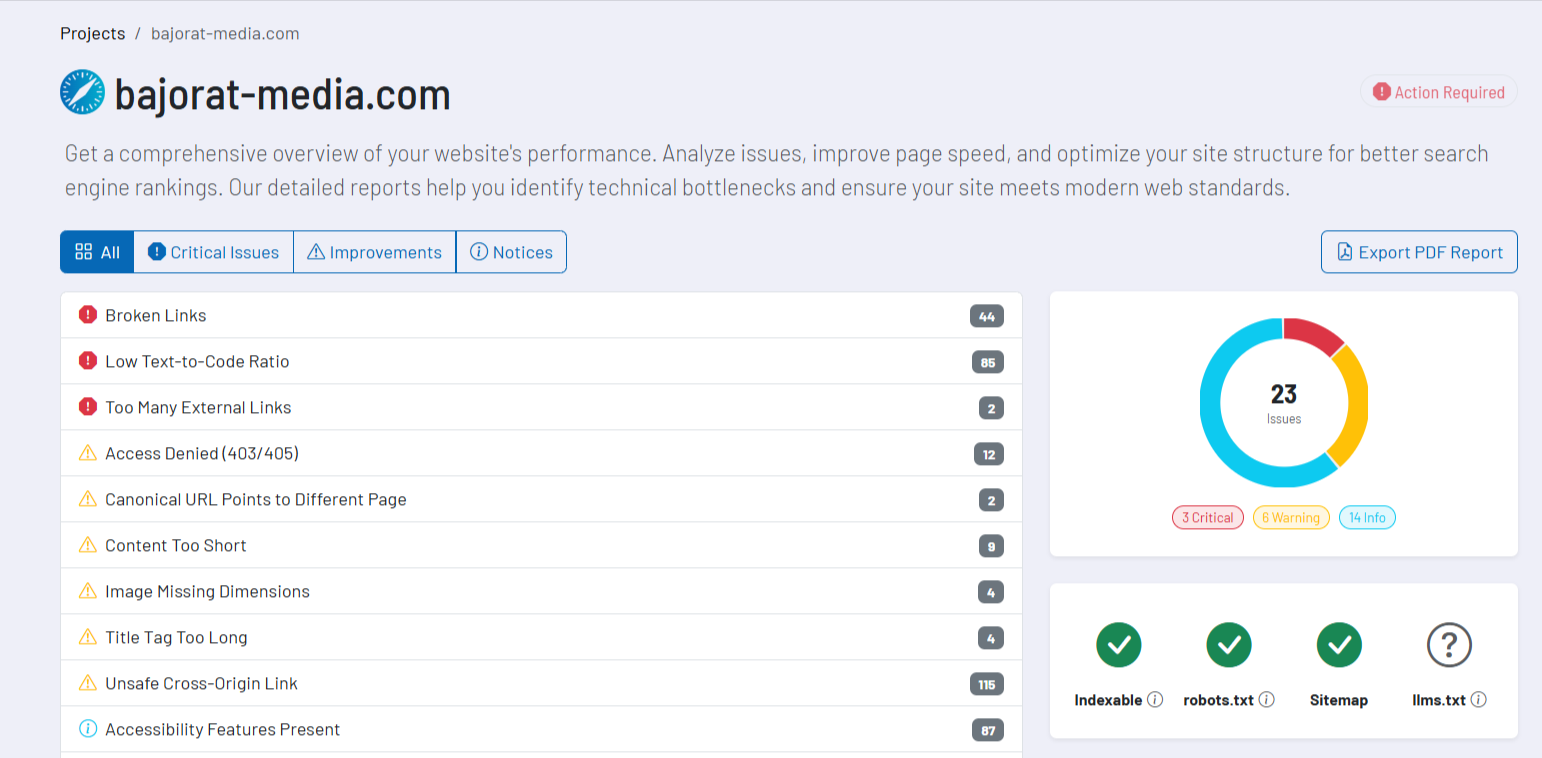
After starting, a project first goes through crawl and analysis phases. During this processing, the Optimizer displays the project status and continuously updates the view. As soon as results are available, you see the most important findings condensed and prioritized in the project dashboard.
The findings are grouped into meaningful areas in the dashboard, such as critical issues, improvements and notices. In addition, there is a project overview with multiple websites, detail views for individual finding types, page details for specific URLs, pagespeed values based on the index URL, and the crawled site structure. This way you see not only that there are issues, but also where and in which context they occur.
Example finding categories of the crawler
The Optimizer detects a broad mix of technical, content-related and structural irregularities. These include, among others, broken links and images, missing or too weak titles, descriptions and H1 headings, canonical and indexing issues, missing Open Graph or Twitter Card data, content that is too short, alt text and accessibility issues, mixed content, broken script or CSS resources as well as other signals related to mobile display, sitemap, robots behavior and site health.
What matters is not just the number of findings, but how they are classified. A critical error has a different operational relevance than a notice or optimization opportunity. This is exactly why the Optimizer is so valuable as a working tool: it not only shows what exists on a website, but also where action should be taken first.
Why continuous website monitoring is so important
Many issues do not arise at the initial launch, but later: through plugin updates, theme changes, relaunches, editorial mistakes, deleted assets, modified redirects or external systems that behave differently than expected. Such changes often go unnoticed internally for a long time, even though they are already affecting visibility, usability, trust or conversion.
The Optimizer creates a decisive advantage here. Instead of reacting only to complaints, ranking losses or conversion drops, you recognize technical and structural problems earlier and can respond in a targeted way. This is precisely what makes it a real early warning and quality system for your website.
Assistant connection and further workflows
A particular strength of the Optimizer is its connection to the Assistant. From individual finding tables, a prepared prompt can be passed directly to the Assistant. This means you do not start with an empty question, but with a request already tailored to the specific finding type.
The Assistant then helps you better understand the cause of an issue, derive priorities, improve wording or prepare specific corrections. This combination of monitoring and direct follow-up support is extremely valuable in day-to-day work, because a finding can be turned into an actionable measure more quickly.
In addition, the Optimizer supports practical follow-up paths such as detail views for issues and individual pages, site structure overviews, pagespeed evaluations, and exports, for example as PDF reports or tabular CSV output. This allows findings to be not only processed internally, but also documented, shared and tracked operationally.
If you work in a team, Optimizer projects can be tracked in a shared context. This is particularly helpful when technology, marketing, SEO and operational project responsibility all work on the same website.
Recommended way of working
- Create projects deliberately per website or relevant sub-area instead of mixing very different audit goals in one crawl.
- Allow the crawler IP
195.201.161.38in firewalls and protection systems at an early stage so that the analysis works reliably. - Use the advanced crawl settings intentionally so that site scope, depth and robots behavior match your actual goal.
- First work on critical findings with clear business impact, then move on to improvements and notices.
- Use the Assistant directly from Optimizer findings if you want to clarify causes, priorities or concrete solution approaches more quickly.
- Do not see the Optimizer as a one-off audit, but as a permanent early warning system for the quality, visibility and stability of your website.