The Consent Manager helps you systematically capture consents for cookies, tracking, external media, and other third-party services, implement them technically, and document them in a traceable way. The tool is not just a banner builder, but a central workspace for domain settings, consent categories, service templates, embed codes, design, publishing, technical diagnostics, and an optional consent log.
In this article
- How the tool works in practice
- Domain properties and basic settings
- Draft, save, and publish
- Texts, languages, and banner content
- Categories, services, and cookie logic
- Service templates and custom services
- Three integration types
- Code blocks, variables, and placeholders
- Google Consent Mode
- Design, triggers, and preview
- Consent log and CMP ID
- Snippets and integration on the website
- Diagnostics for live checks
- Export and import
- Maintenance, revisions, and deletion logic
- Recommended workflow
The Consent Manager is particularly valuable when a website needs more than a simple cookie notice window and instead requires services to be clearly separated into categories, existing scripts to be controlled, embedded media to be blocked, and changes to be published in a controlled way. This ensures that you retain control over which services may be loaded before consent, which only become active after a selection, and how visitors can later adjust their decision.
The tool does not replace a concrete legal assessment. However, it creates a robust technical foundation: you can bring together traceable categories, clear texts, service-related toggles, documented revisions, and technical checks instead of maintaining banners, scripts, and consent logic scattered across different systems.
How the tool works in practice
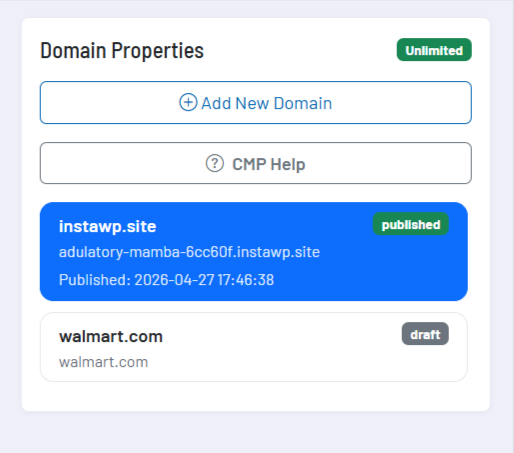
The typical workflow starts with a domain property. You create a domain without protocol and path, for example example.com, assign an internal label if needed and add the most important basic data such as default language, privacy policy, legal notice, and allowed hosts. This property is then configured step by step.
After that, you maintain the texts and languages of the banner, activate the appropriate consent categories, add specific services or select templates, adjust the design, and review the configuration in the preview. Only when the configuration is coherent from a business and technical perspective do you publish it. This separation between draft and publication allows you to prepare adjustments without immediately changing the live website.
After publishing, you receive the public configuration URL and the appropriate embed snippets. Typically, a single standard snippet is inserted early in the <head> of the target page. You then check the live page with a private browser session and with the integrated diagnostics so that no old consent scripts, hardcoded trackers, or unwanted requests remain active before consent.
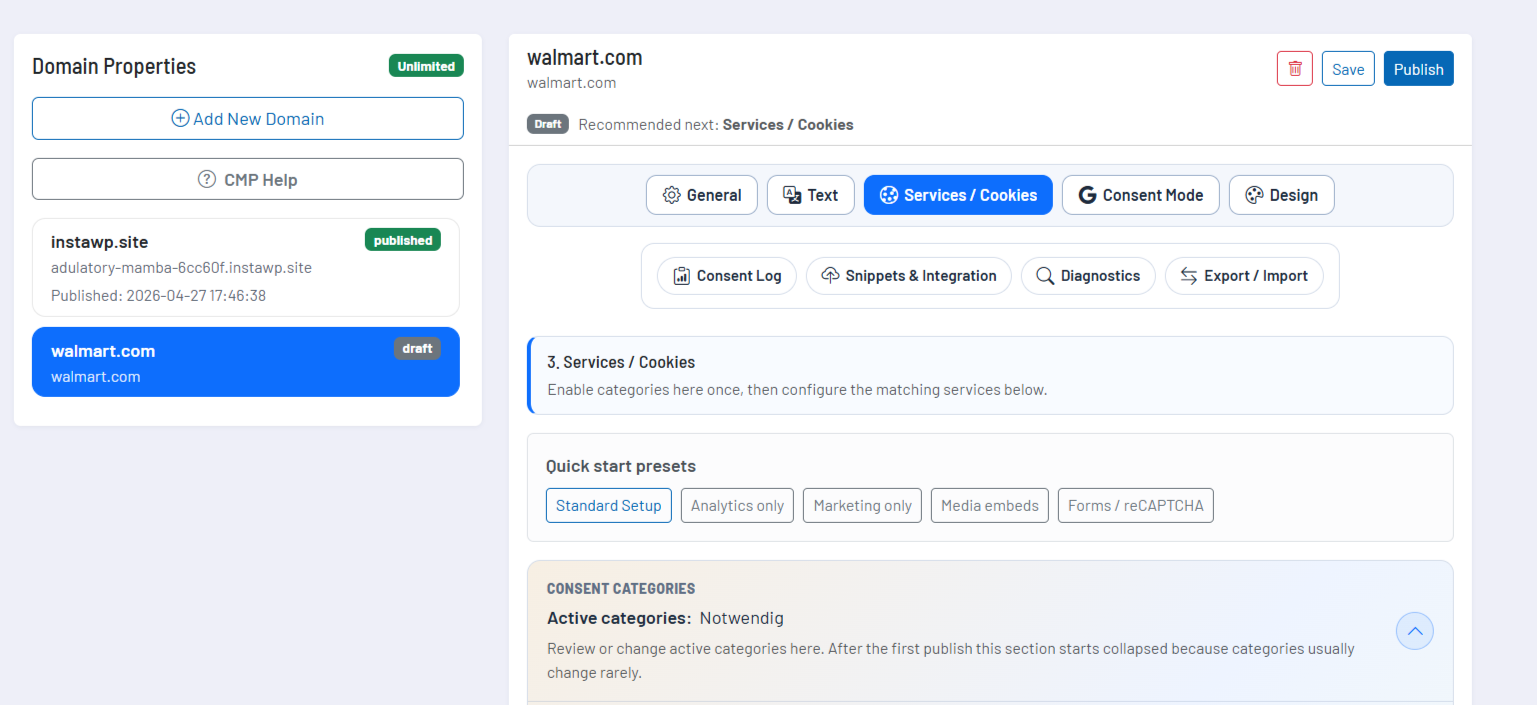
The interface guides you through the most important work areas and shows a recommended next step, for example if no services have been configured yet, required fields are missing, the property has not yet been published, or if diagnostics would be useful after publication.
Domain properties and basic settings
A domain property is the central container for a CMP configuration. All texts, categories, services, design options, logs, diagnostics, and snippets are attached to this property. This allows different websites to be managed separately without settings interfering with each other.
| Setting | Practical meaning |
|---|---|
| Domain | The main domain of the website, without https://, without path and without subpage. It serves as the primary host and is always allowed. |
| Label | An internal name for the property. It helps you navigate in the domain list and is automatically derived from the domain if you do not enter your own label. |
| Default language | The fallback language of the banner if no automatic language detection applies or if no suitable translation has been configured for a language. |
| Privacy policy | The URL of the privacy policy, which is stored in the published configuration and can be referenced in the consent context. |
| Legal notice | The URL of the legal notice or comparable mandatory information of the website. |
| Allowed hosts | Additional hosts or subdomains on which the same CMP configuration may be used, for example www.example.com, shop.example.com, or a staging subdomain. |
| Public Key | The public key of the property, which is used in the snippets and in the configuration URL. It links the website to the correct published CMP configuration. |
| Status and version | The status shows whether a property exists only as a draft or has already been published. The configuration version helps identify which state was last deployed. |
The allowed hosts are particularly important when a website is accessible via multiple hostnames. The primary host of the property is always part of the allowed hosts. You should consciously add additional hosts if the CMP is to be used on subdomains, language domains, shop areas or test environments.
Draft, save, and publish
The Consent Manager deliberately separates saved drafts from the published configuration. Saving secures your work in Cockpit. Publishing creates the public JSON configuration, updates the live state of the property, and provides the snippets and the public configuration URL.
This separation is important because CMP changes often need to be reviewed from a business perspective. You can adjust texts, categories, services, or design, check them in the preview, and only then deploy them. If the published JSON state no longer matches the current domain data, the tool indicates that you should publish again.
When publishing, you can optionally trigger a new consent revision. This is intended for changes where visitors should explicitly be asked to decide again. For this purpose, you can maintain a revision message per language, which explains in the banner why a new selection is necessary. Routine maintenance changes do not have to automatically force renewed consent.
Texts, languages, and banner content
In the text area you maintain all visible wording of the banner and cookie settings. This includes titles, descriptions, button labels, settings dialog, revision notices, CMP ID notes, category titles, category descriptions, and texts for blocked content such as embedded videos or maps.
The tool ships with German and English texts and allows additional language codes such as fr, es, or pt-BR. Each language can have completely independent banner, settings, and blocker texts. The interface indicates whether required texts have been fully maintained for a language.
- The default language is the safe fallback if no detected language matches.
- Automatic language detection can be based on the browser or the document context of the website.
- Category titles and category descriptions are also maintained per language so that cookie settings remain understandable for visitors.
- The revision message only appears in the banner if a new consent revision is actually created during publishing.
- The texts for blocked content are used when an embed or iFrame should only be released after consent.
Categories, services, and cookie logic
The technical logic of the Consent Manager is based on categories and services. Categories describe the purpose of consent. Services are the concrete services, scripts, pixels, tags, fonts, or embeds within a category. This separation ensures that visitors do not just give blanket consent but can understand in the cookie settings which services sit behind a choice.
| Category | Typical use |
|---|---|
| Necessary | Essential functions of the website and the CMP itself. This category is always active and cannot be disabled. |
| Functional | Comfort and functional services such as external media, maps, fonts, form protection, or other content needed for additional website functions. |
| Analytics | Analytics and measurement services such as Google Analytics, Matomo, Hotjar, or Microsoft Clarity. |
| Marketing | Advertising, remarketing, and conversion services such as Google Ads, Meta Pixel, LinkedIn Insight Tag, Microsoft Ads UET, TikTok Pixel, or Pinterest Tag. |
For a quick start, the tool includes presets for standard setup, analytics, marketing, media embeds, and forms / reCAPTCHA. These presets create suitable services and activate the associated categories. You must then review and complete the respective IDs, URLs, and texts before you can publish.
| Preset | Typical content |
|---|---|
| Standard setup | Combines analytics, marketing, media embeds, and form protection as a comprehensive starting point. |
| Analytics | Creates Google Tag Manager and Google Analytics 4 in the analytics context. |
| Marketing | Creates a Meta Pixel in the marketing context. |
| Media embeds | Creates placeholders for YouTube and Vimeo in the functional context. |
| Forms / reCAPTCHA | Creates Google reCAPTCHA in the functional context. |
Service templates and custom services
When adding a service, you either choose a template or start with a manual service. Templates already provide meaningful default texts, provider information, privacy URLs, variables, code blocks, and in some cases placeholder rules. Nevertheless, every service remains editable after being added so that you can adapt it to the specific website and the actual technical integration.
| Service group | Examples from the templates |
|---|---|
| Google and tagging | Google Tag Manager, Google Tag, Google Analytics 4, Google Ads, and setups close to Google Consent Mode. |
| Marketing pixels | Meta Pixel, LinkedIn Insight Tag, Microsoft Ads UET, TikTok Pixel, and Pinterest Tag. |
| Analytics and UX analysis | Matomo Analytics, Matomo Tag Manager, Hotjar, and Microsoft Clarity. |
| Functional services | Google Fonts and Google reCAPTCHA. |
| Embed placeholders | YouTube, Vimeo, and Google Maps with CSS selectors for existing iFrames. |
In the service editor, you edit category, active status, names and descriptions per language, provider name, privacy URL, variables, and code blocks. Required fields are clearly marked. A service can only be cleanly published when the necessary values have been filled in. Optionally visible warnings help you detect conspicuous or incomplete settings early.
For website-owned scripts, the tool shows both category-related attributes and service-related values such as public service key, data-service, and combined example snippets. This allows you to assign existing script tags to a specific service toggle rather than only using the entire category.
Three integration types
| Integration type | When to use it | Important note |
|---|---|---|
| CMP-loaded services | The CMP loads scripts, stylesheets, HTML, or placeholders only after the appropriate consent. | This variant is suitable for services that should be fully controlled via the CMP configuration. |
| Website-owned scripts | A script remains in the website code but is controlled by CookieConsent using attributes such as type="text/plain", data-category, and optionally data-service. | Use this variant when the script is intentionally supposed to remain in the website code. |
| Embed and iFrame placeholders | Existing embeds such as YouTube, Vimeo, or Google Maps should initially remain hidden and only appear after consent. | For this, you configure CSS selectors, for example for specific iFrame sources. |
It is important that the same service is not managed twice. A tracker should either be configured as a CMP-loaded service or marked as a website-owned script. If both are done in parallel, it leads to hard-to-understand loading times and double executions.
If a service is assigned to a deactivated category, the interface will indicate this. In practice, category and service should always be considered together: an active service in a deactivated category cannot reflect the expected visitor decision.
Code blocks, variables, and placeholders
Templates work with variables such as a GA4 measurement ID, a Google Ads conversion ID, a Meta Pixel ID, or a Matomo URL. The placeholders remain in the stored code and are only replaced with the configured values directly before execution. This keeps it traceable which parts of the code come from the template and which values were maintained by you.
| Code block | Behavior |
|---|---|
| External script URLs | One HTTPS URL per line. The CMP loads the script tags after consent in the same order. |
| External stylesheet | A stylesheet URL, for example for Google Fonts, which is only loaded after consent. |
| Tracking script | JavaScript that is executed after consent. An outer <script> wrapper may be normalized on save. |
| Additional HTML code | An HTML fragment that is inserted at the end of document.body after consent. |
| Noscript fallback | A fragment for visitors without JavaScript. An outer <noscript> wrapper may be normalized on save. |
For custom or adapted code blocks, the Consent Manager uses a warning and audit model. Conspicuous patterns are not generally hidden but made visible for review. Changes to service code are logged as change records with hashes without storing the raw script content in this audit history.
Google Consent Mode
The Google Consent Mode area is intended for setups in which Google Tag Manager, Google Tag, Google Ads, or Google Analytics should actively receive consent signals. There, you assign CMP categories to Google signals. Typical signals are analytics_storage for analytics, ad_storage, ad_user_data, and ad_personalization for marketing, as well as functionality_storage and security_storage for functional contexts.
Consent Mode does not replace technically blocking hardcoded scripts. It extends the CMP configuration by sending appropriate Google signals after a decision. If Google services are already running elsewhere hardcoded in the website code, these integrations should also be checked and either properly marked or moved into the CMP service logic.
- Activate Google Consent Mode only if your website actually uses Google Tag Manager, Google Tag, Google Ads, or Google Analytics.
- Assign only active CMP categories to meaningful Google signals.
- Do not use parallel early Google defaults in multiple places if the CMP is already meant to handle this task.
- After integration, check whether tags show the expected behavior before and after consent.
Design, triggers, and preview
In the design area, you adjust the consent modal, preferences modal, colors, theme, trigger behavior, and additional display options. The integrated preview renders the current draft with CookieConsent v3 so that you can check layout, button weighting, texts, colors, and the settings dialog before publishing.
| Design area | Settings |
|---|---|
| Consent modal | Layout variants such as box, cloud, or bar, position, button order, and equal button weighting. |
| Preferences modal | Layout as box or bar, position for bar layouts, button order, and button weighting. |
| Theme | Presets such as light, dark, Dark Turquoise, Light Funky, or Elegant Black. |
| Button colors | Primary and secondary button backgrounds and automatic or manual text color. |
| Behavior | Dark UI mode, disabling page interaction while the first banner is displayed, and disabling CMP animations. |
| Trigger | Persistent access to cookie settings after the first visitor decision, either as a floating button or footer link. |
| Custom CSS | Advanced CSS customization with validation. Use this primarily for fine-tuning beyond the built-in button color controls. |
The trigger only appears after a visitor has made an initial decision. This prevents an extra cookie button from overlapping the initial banner. In the live check, you should verify whether the trigger is visible after the decision and reliably reopens the cookie settings.
Consent log and CMP ID
The consent log can store anonymized consent changes per banner. It works with the native CMP ID and stores decision type, accepted and rejected categories, accepted and rejected services, host, language, and timestamp. IP addresses and WordPress user IDs are not stored.
If logging is active and there is a real consent decision on the live website, the CMP ID can be displayed in the cookie settings. Visitors can reference this ID when making inquiries, while you can search for the CMP ID in Cockpit, review decisions, and export relevant logs.
- The statistics show total decisions, “Accept all”, “Reject all”, and individual selection.
- A daily view visualizes the development of stored decisions over the selected period.
- The category evaluation shows which optional categories were frequently accepted.
- The log can be filtered by CMP ID and by date from and to.
- A CSV export supports structured transfer or archiving of selected records.
- Records are automatically removed 180 days after the last consent change of a CMP ID.
- The preview does not create real log entries. Only the published live runtime writes to the consent log.
Snippets and integration on the website
After publishing, the Consent Manager provides the public configuration URL and several integration variants. For most websites, the CSP-friendly standard snippet is the right approach. It is placed early in the <head>, ideally before tag managers and before other tracking scripts. For WordPress, you can alternatively use a PHP snippet that outputs early in wp_head.
The tool also shows a snippet with early Google defaults. This should only be used if a setup explicitly requires this early signaling. It is crucial that you do not run multiple consent systems or Google default mechanisms in parallel.
The public configuration is loaded via the CMP integration. The required runtime and CookieConsent components are delivered via CMP routes, so you generally do not need to store separate CookieConsent files on the website.
- Publish the domain first before using the final snippet.
- Completely remove old CMP, cookie, or consent plugin outputs before testing the new snippet live.
- Integrate exactly one CMP on the same website.
- Place the standard snippet very early in the
<head>. - Check in a private browser session whether banner, buttons, settings, trigger, and blocked content work as expected.
- Then use diagnostics to check whether any unexpected trackers, cookies, or requests are still active before consent.
Diagnostics for live checks
Diagnostics scan a specific target URL of your property and check technical signals before consent. Requests, initially set cookies, and warnings about conspicuous resources or integration errors are evaluated. The target URL must match the domain or allowed hosts of the property.
This check is particularly useful before go-live, after relaunches, after tag manager changes, after theme adjustments, or after integrating new third parties. Many consent issues do not arise in the banner itself but from hardcoded scripts, legacy plugin output, or external scripts that already run before the CMP decision.
- Scan not only the homepage but also pages with forms, videos, maps, campaign landing pages, and tracking-relevant elements.
- Many early requests or initial cookies indicate scripts outside CMP control.
- Warning codes help you review the technically most critical integrations first.
- A clean scan does not replace a final legal review, but significantly speeds up technical troubleshooting.
- Up to 25 of the most recent diagnostic runs per property remain available so you can track the current technical inspection status.
Export and import
With export and import, you can reuse CMP configurations between similar properties. Export creates a JSON bundle with deliberately selected modules. When importing, you again choose which modules should be transferred to the target property. Unselected areas remain unchanged.
| Module | What is transferred |
|---|---|
| General | Default language, legal URLs, and allowed hosts, with the primary domain of the target property still remaining authoritative. |
| Categories | Activated consent categories. |
| Consent Mode | Google Consent Mode activation and signal mapping. |
| Text | All language settings and maintained UI texts. |
| Design | Modal layout, theme, trigger, colors, behavior, and custom CSS. |
| Services / cookies | Configured services, template copies, parameters, code blocks, and placeholder settings. |
Identity values such as domain, public key, version states, and consent revision remain property-specific. After each import, you should review the affected tabs, save, check in the preview, and only then publish.
Maintenance, revisions, and deletion logic
CMP configurations are not a one-off setup. New marketing tags, changed analytics setups, external media, form protection, design changes, or modified legal texts may make updates necessary. The Consent Manager supports this maintenance with drafts, publication states, revisions, diagnostics, export/import, and traceable service code changes.
When a domain property is deleted, related published configuration data, diagnostics, consent logs, and service audit data are also removed. Therefore, a property should only be deleted if it is truly no longer needed. For active websites, it is usually better to maintain the existing property and publish again.
Recommended workflow
- Start with a clean domain property and only add allowed hosts if these hostnames are actually supposed to use the CMP.
- First maintain texts and languages so that categories and services later appear directly with the correct visitor communication.
- Activate only the categories your website actually needs and assign every service to a traceable category.
- Use templates as a starting point, but always review IDs, provider information, privacy URLs, code blocks, and placeholder rules.
- Decide clearly for each service between CMP-loaded integration, website-owned marked script, or embed placeholder.
- Publish only when no required fields are missing and the preview shows the desired user journey.
- Completely remove old consent solutions before testing the new snippet live.
- After each relevant change, run diagnostics on real pages, not just on the homepage.
- Use a new consent revision only for changes where visitors should deliberately decide again.
- Document internally which services are technically controlled via the CMP and which are intentionally controlled via marked website scripts.